
The Moodle app. Features, advantages and why it is important for your Moodle™ training site.
If Moodle and its themes have a responsive design, is the app necessary?
It is true that students can access their Moodle™ website from their mobile, and everything will look reasonably well due to the architecture responsive, but if you want to provide a complete and quality service to your students, pay attention to the bold parts of the following phrases. That is what the app brings.
With the Moodle™ mobile app, your students can
- Navigate through the content of your courses, even when they do not have an Internet connection.
- Receive instant notifications of messages and other events
- Find and contact quickly with other people in your courses
- Upload images, audio, videos and other files from their mobile device
- Follow their progress, mark tasks as completed and navigate through their learning plans
- Participate in quizzes, post in forums and edit wiki pages
- Check their course grades
- Take advantage of moments when they do not have access to a computer and want to study, take a test, etc…
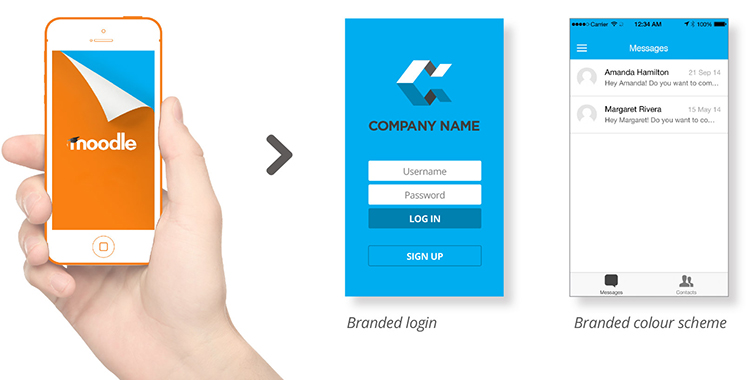
How to create courses that work well in the Moodle app
As more and more students access courses from their smartphones, tablets or other mobile devices, it is increasingly important to ensure that your courses are compatible with mobile devices.
Encouraging students to install the Moodle mobile app is a way to improve their learning experience. Below you will find some suggestions to optimise your course materials for both students who use the app and those who access Moodle from mobile devices.
Course setup
Topic or weekly course formats adapt better to mobile devices. In the topic format, the first section or the highlighted section is shown by default in the app. In weekly format, the current week is shown.
Do not use orphan activities or direct links to activities (the links will work but it is not the best experience for mobile).
If you have a mix of students who access the course on mobile and desktop, consider asking your administrator to install the Moodle Mobile availability plugin that restricts elements to desktop or mobile users.
Course content
- Use responsive HTML on pages.
- Use a page or a book instead of downloadable documents whenever possible.
- Avoid loading many documents or having numerous pages with a lot of text. Think more in terms of "short pieces of information".
- If you include YouTube videos, try to keep them short and consider downloading them and viewing them offline in a folder. Not all video formats are compatible, so add them in different formats. (MP4 is probably the most accepted format).
- For YouTube or Vimeo videos, you can use Bootstrap responsive classes: https://getbootstrap.com/docs/4.0/utilities/embed/, for example:
<div class="embed-responsive"><video>- Keep in mind that drag and drop questions behave differently in the app. You cannot drag images, you have to touch to select and touch to drop.
- Keep in mind that if you add YouTube video links or map links as URL resources, they will automatically open in the app.
- Use only plugins compatible with mobile apps to be able to access them through the mobile app (see the Moodle plugin directory): Feature: mobile app support.
- If you want to include large audio files in your course, consider including them embedded in a label or page instead of as a file resource. The reason is that embedded files will play even if the screen is locked, but files will not play with the screen locked.
Multimedia download for offline use
To allow multimedia files, such as videos, to be downloaded automatically when viewed.
The file must be uploaded to the course, instead of being linked to it (from YouTube, Vimeo, etc.).
The file must be small – less than 2MB for 3G users or less than 20MB for WiFi users
When a page containing the video (without playing it) is viewed, the file will be downloaded.
When using Moodle Mobile 3.1 or later with a WiFi connection, when the video is played, the file will be downloaded in the background. The next time the video is played, the downloaded file will be used.
Keep in mind that if the user performed a full course download, the files will be downloaded regardless of their size.
Notifications and messages
Encourage your students to activate mobile notifications so they receive alerts about calendar events, forum posts, messages, task submissions, etc. More information in Mobile App Notifications.
You can also enable mobile notifications for all users by default through the messaging settings. Students can disable mobile notifications within the app.
If you want your own Moodle app, we can create it for you. Contact us.
