
Open source visual assistance for Moodle™
Remote Assistance: help students live without accessing their desktop
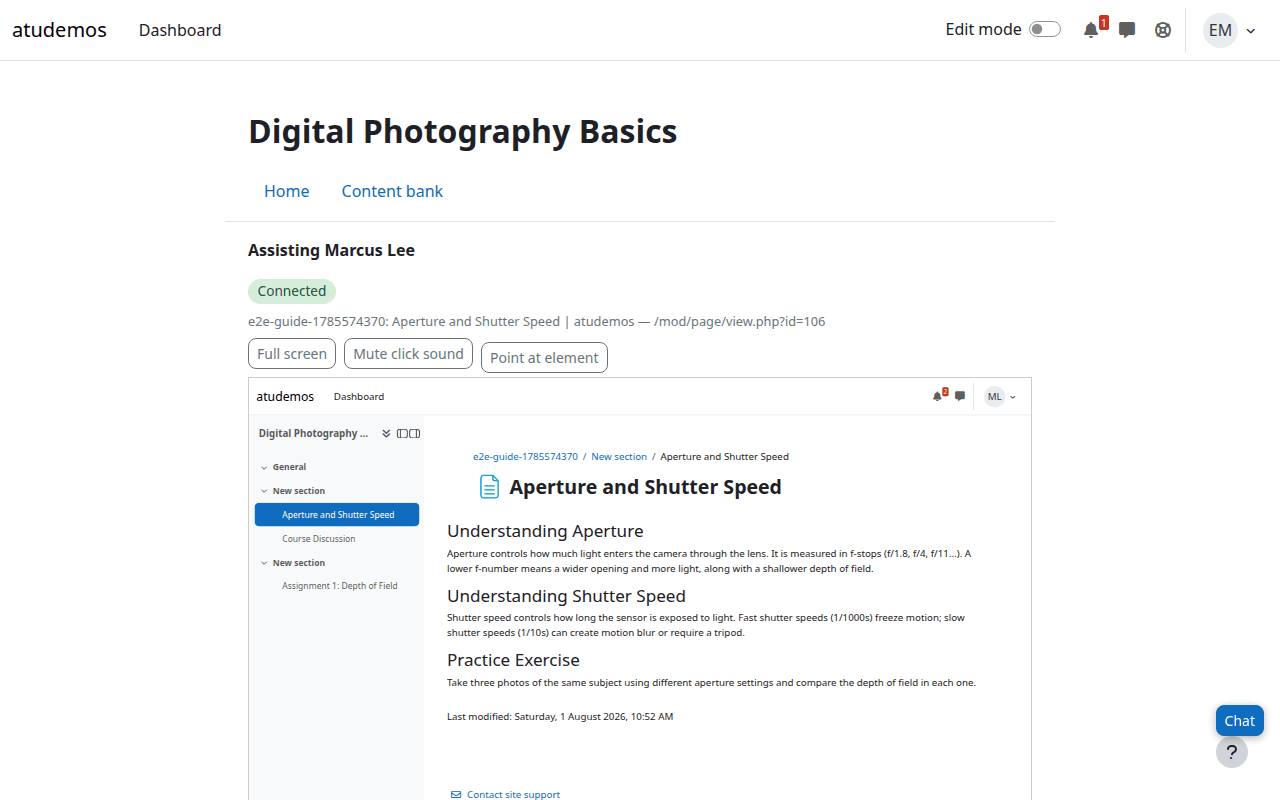
The teacher sees a safe reconstruction of the Moodle™ page where the student needs help, follows their navigation, chats and points at elements. No software installation, external services or browser control.
The problem
A video call or remote desktop can expose other tabs, applications and data unrelated to Moodle™, while also requiring external software.
The solution
Assistance takes place inside Moodle™ and begins only when the student requests it. The teacher receives the context needed to guide them.
Privacy by design
It transmits neither video nor the desktop. It reconstructs only the current Moodle™ page, removes sensitive data and displays it without scripts or remote interaction.
Useful assistance without taking control
Remote Assistance resolves navigation and usage questions while the student retains full control of their session.
- Voluntary request from any page in an authorised course.
- Near-real-time view of Moodle™ navigation, scrolling and modals.
- Integrated chat without leaving the page.
- Optional visual pointer for highlighting links, buttons or fields.
- Persistent bar identifying the teacher and allowing the student to end the session.
- History and synchronised replay of screen activity and chat, according to the configured retention period.
What the teacher never receives
Outside Moodle™
No other tab, application, desktop or page from another domain.
Sensitive data
Passwords, hidden fields and values entered in forms are not captured.
Remote control
The teacher cannot click, type or scroll the student's page. Pointing is a visual aid only.
Visible consent: no session begins without a student request, and the student can end it immediately from any page.
Technical sheet
local_remotesupportInstallation and configuration
- Download the release and copy the plugin to
local/remotesupport. - Open Site administration → Notifications to complete the installation.
- Review the capabilities assigned to students, teachers and administrators.
- Configure request expiry, capture area, cursor frequency, sound, retention and the teacher pointer.
Illustrated user guide
The screenshots come from real plugin sessions in a fictional course. Each step shows what the student sees and what the teacher sees.
1. Before a session begins
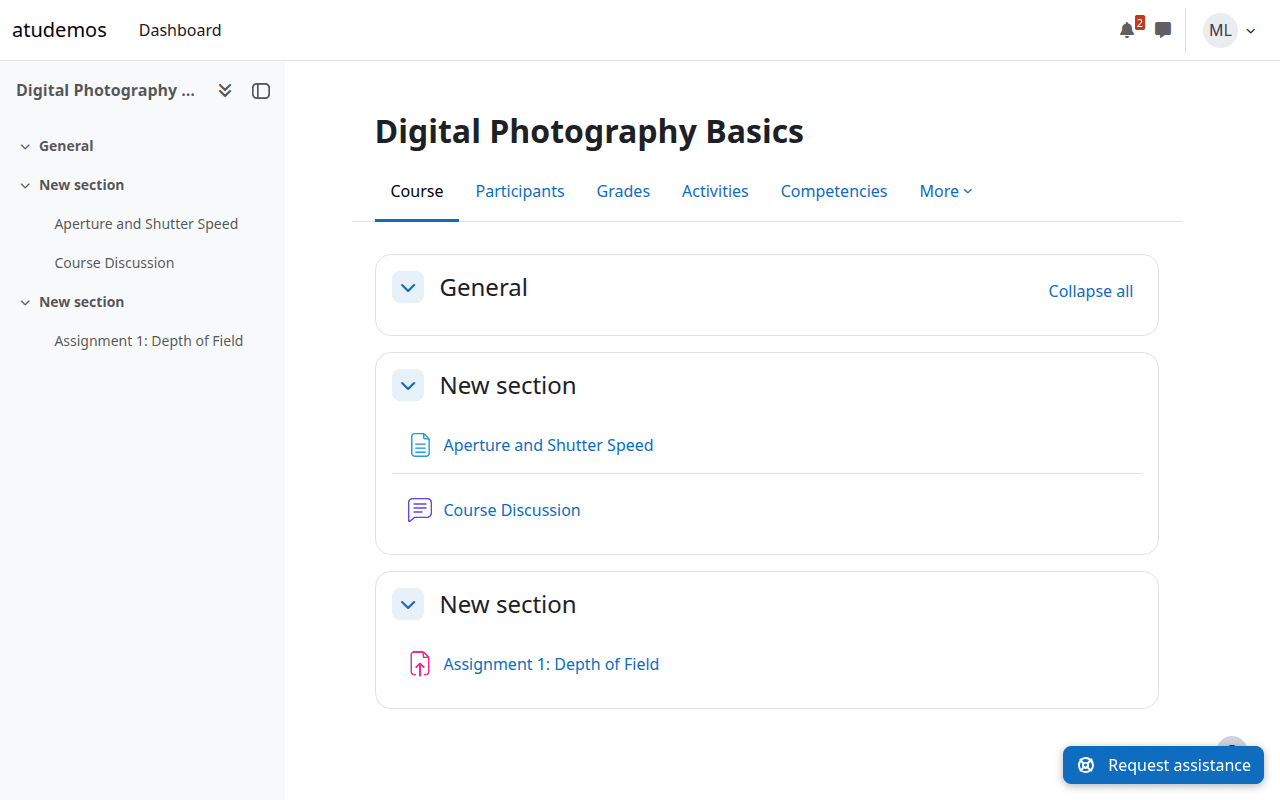
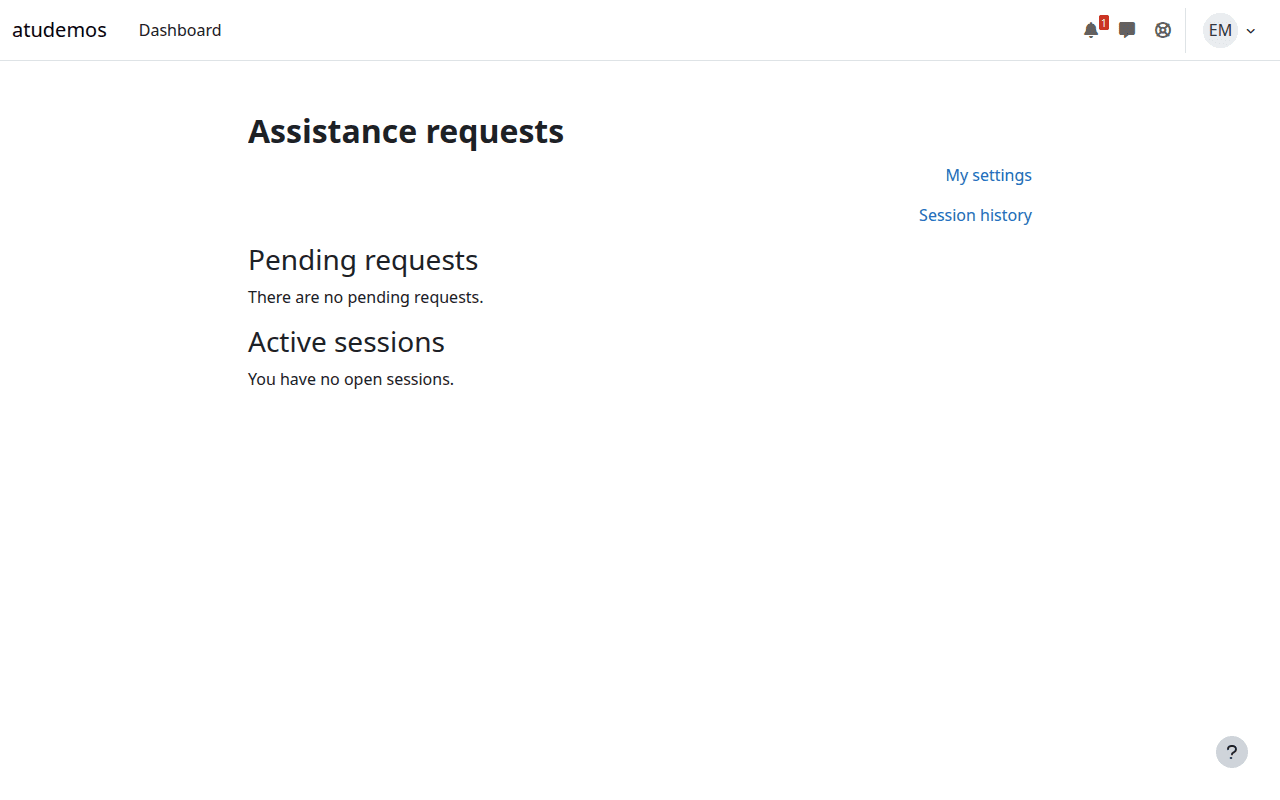
The student sees a floating button for requesting assistance. The teacher has a dashboard that remains empty until someone asks for help.
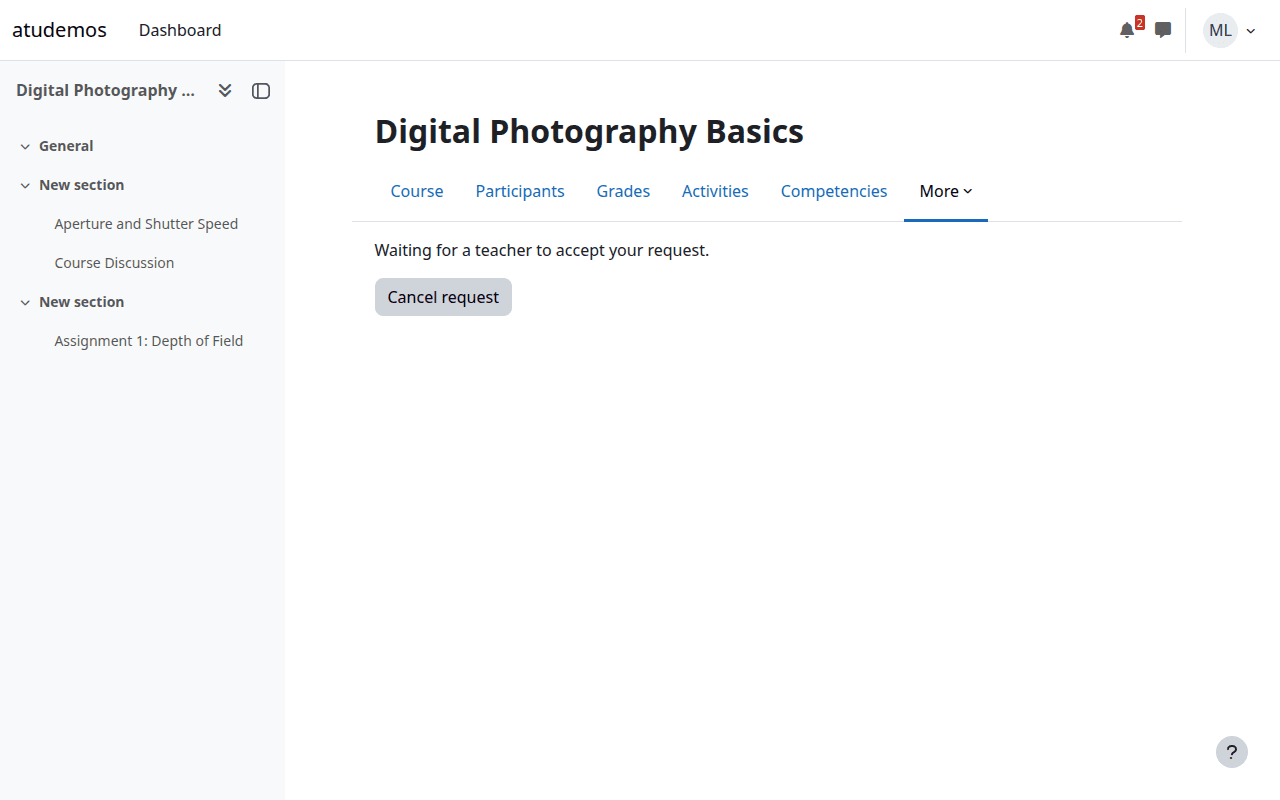
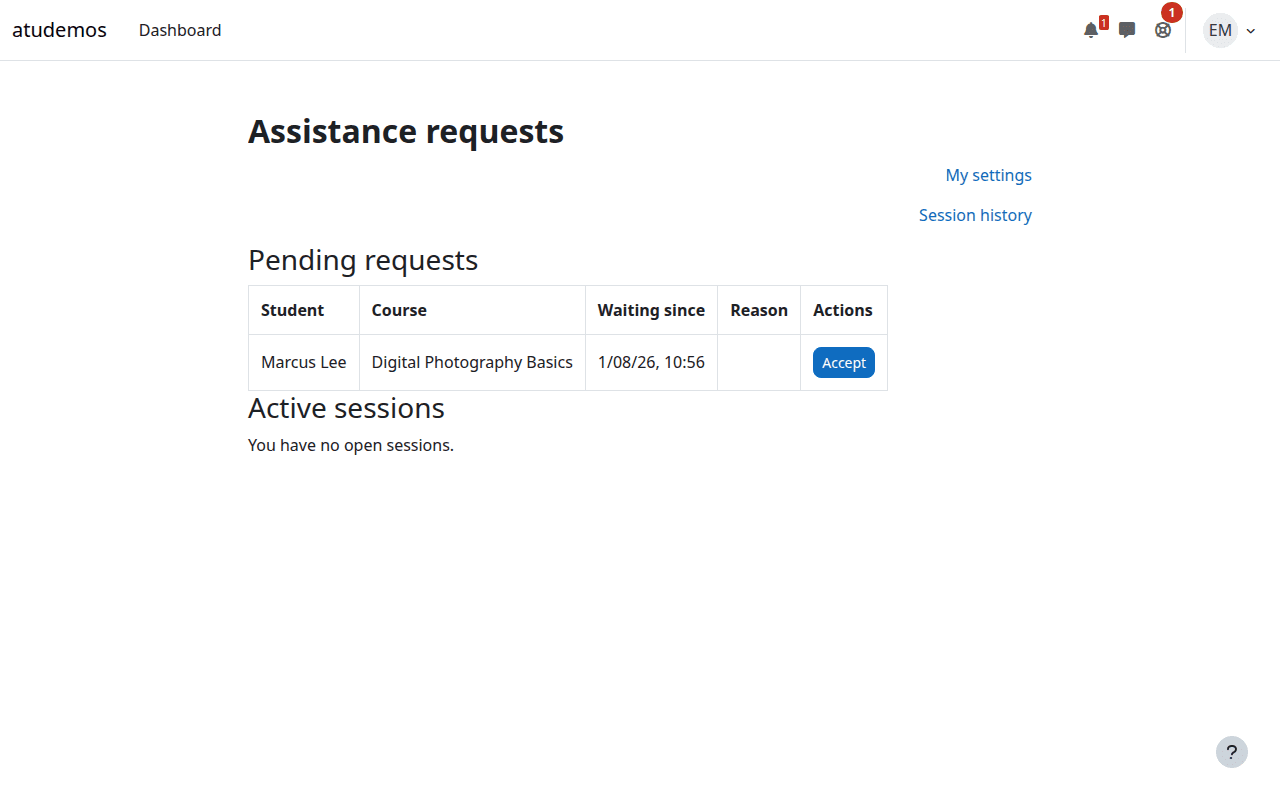
2. The student requests help and a teacher accepts
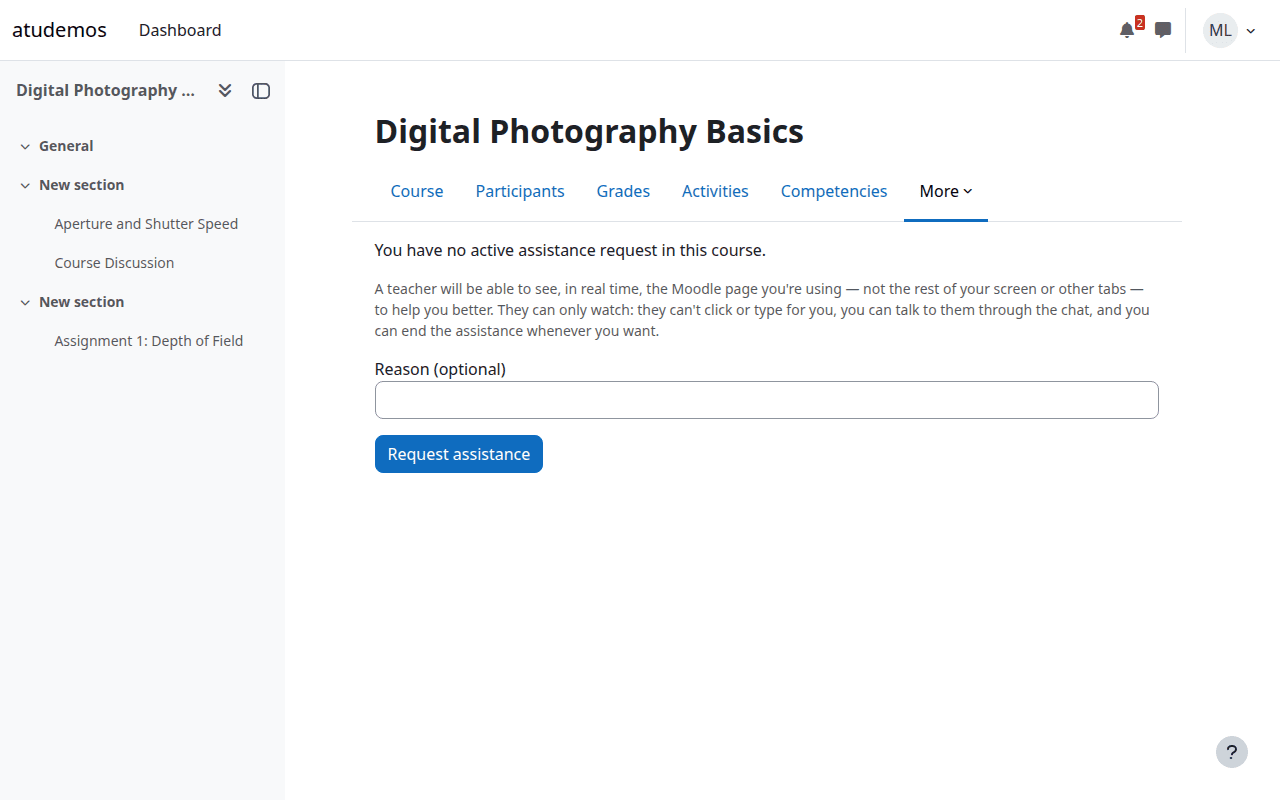
The student can briefly explain what they need. The request waits and appears on the teacher’s dashboard with the course and waiting time.
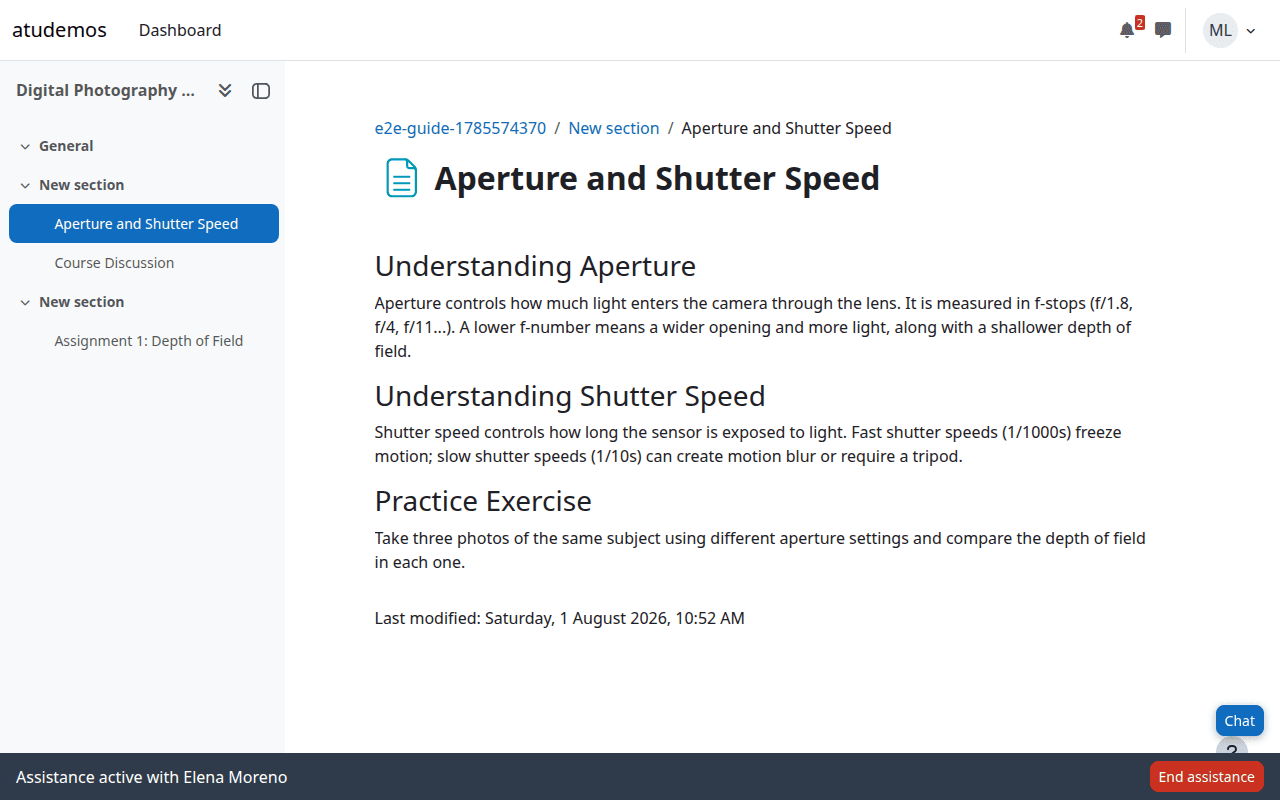
3. The shared view begins
The student keeps browsing normally and sees a persistent status bar. The teacher receives a safe reconstruction that updates as the student changes page or scrolls.
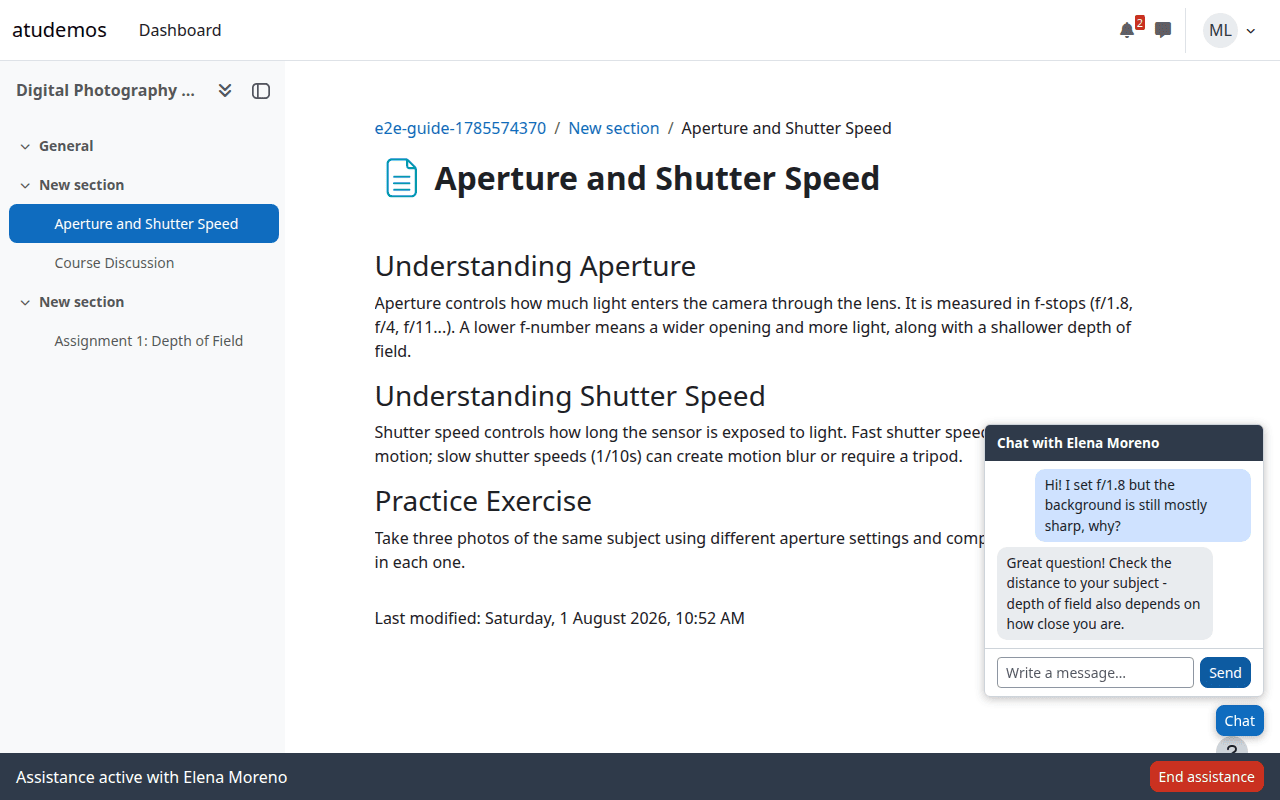
4. Chat inside Moodle™
Both sides open a small chat without leaving their current page.
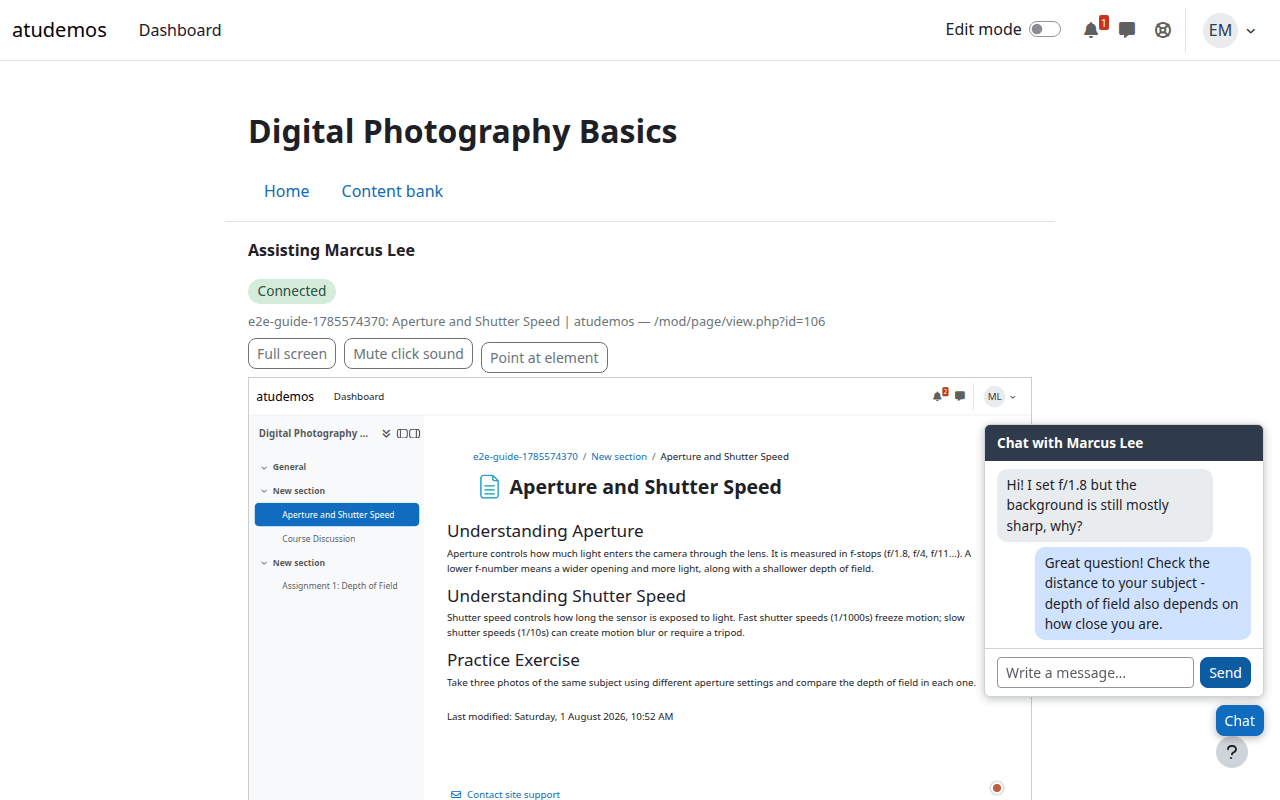
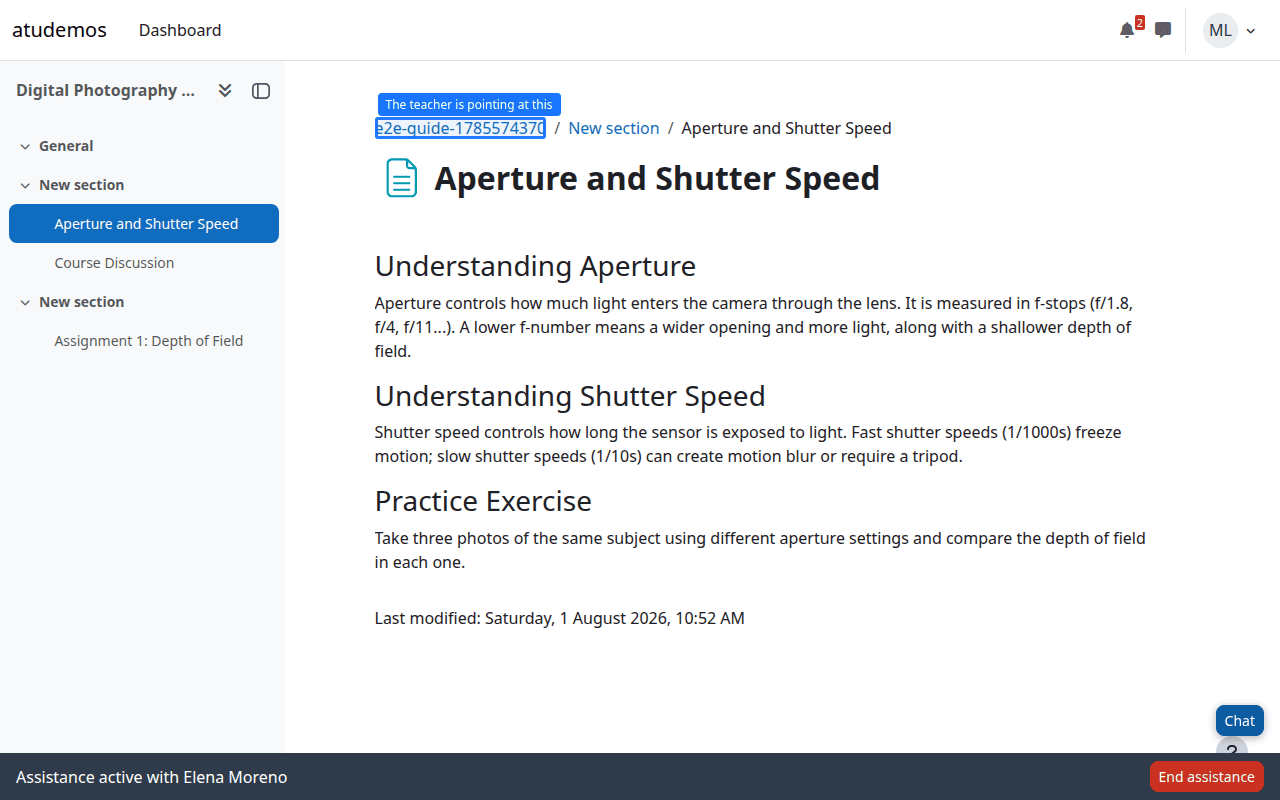
5. The teacher points at an element
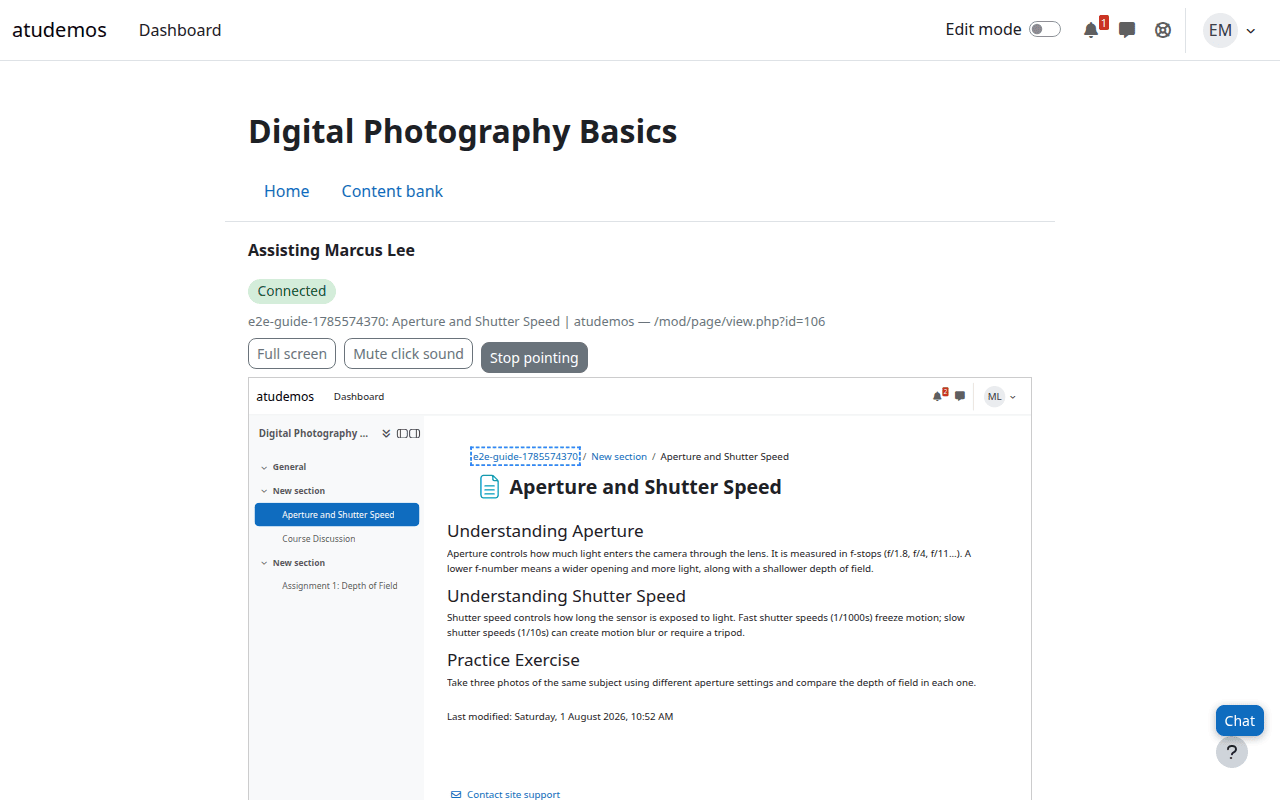
If enabled, the teacher picks an element in the reconstruction and the student sees a temporary outline. It is a visual pointer: it never clicks or changes a field.
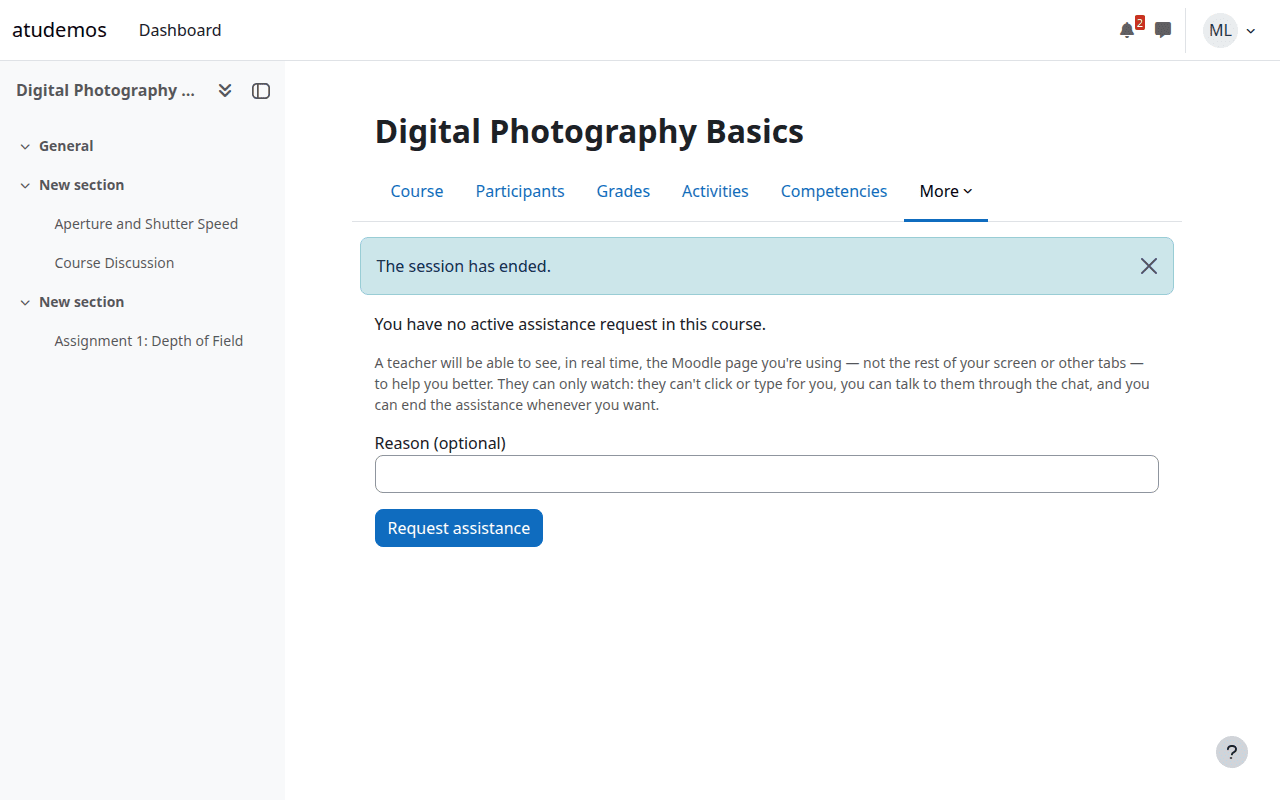
6. End the session
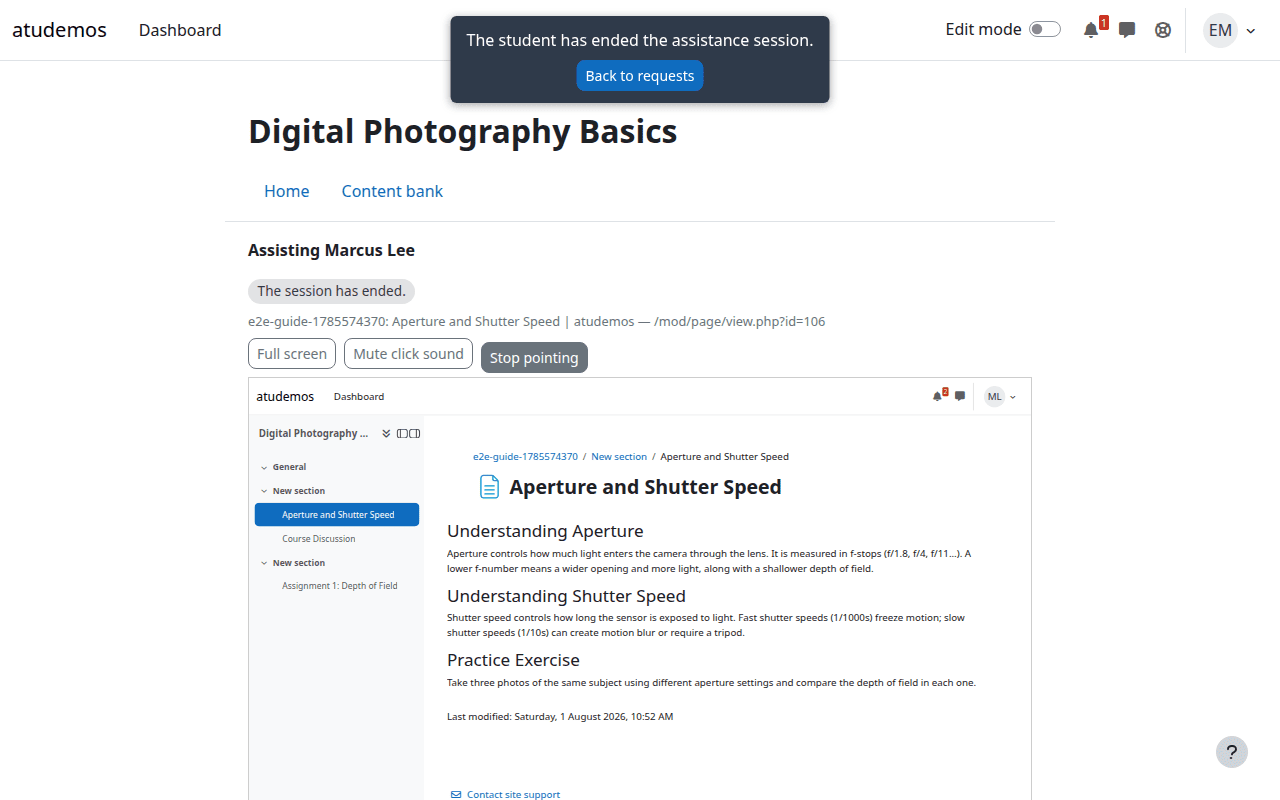
Either side can finish at any time. The student returns to normal browsing and the teacher receives a clear notice.
7. History and replay
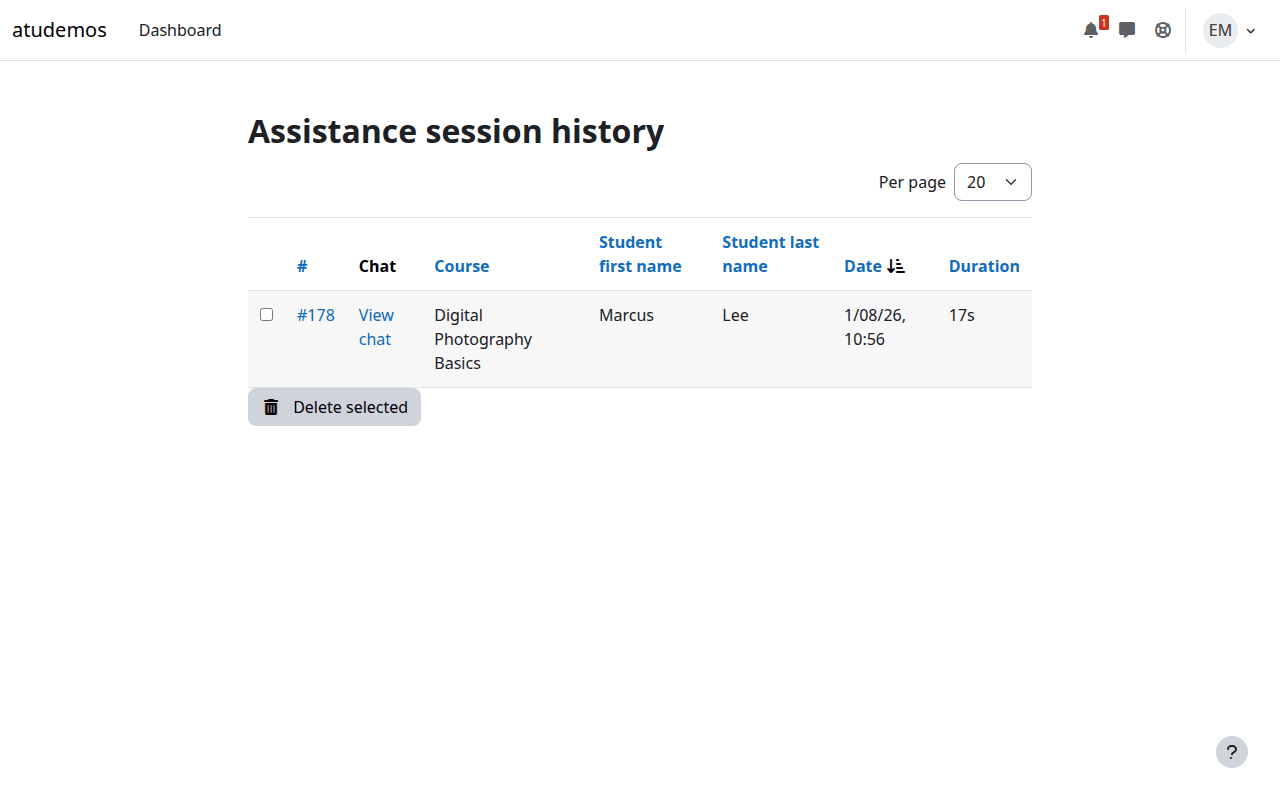
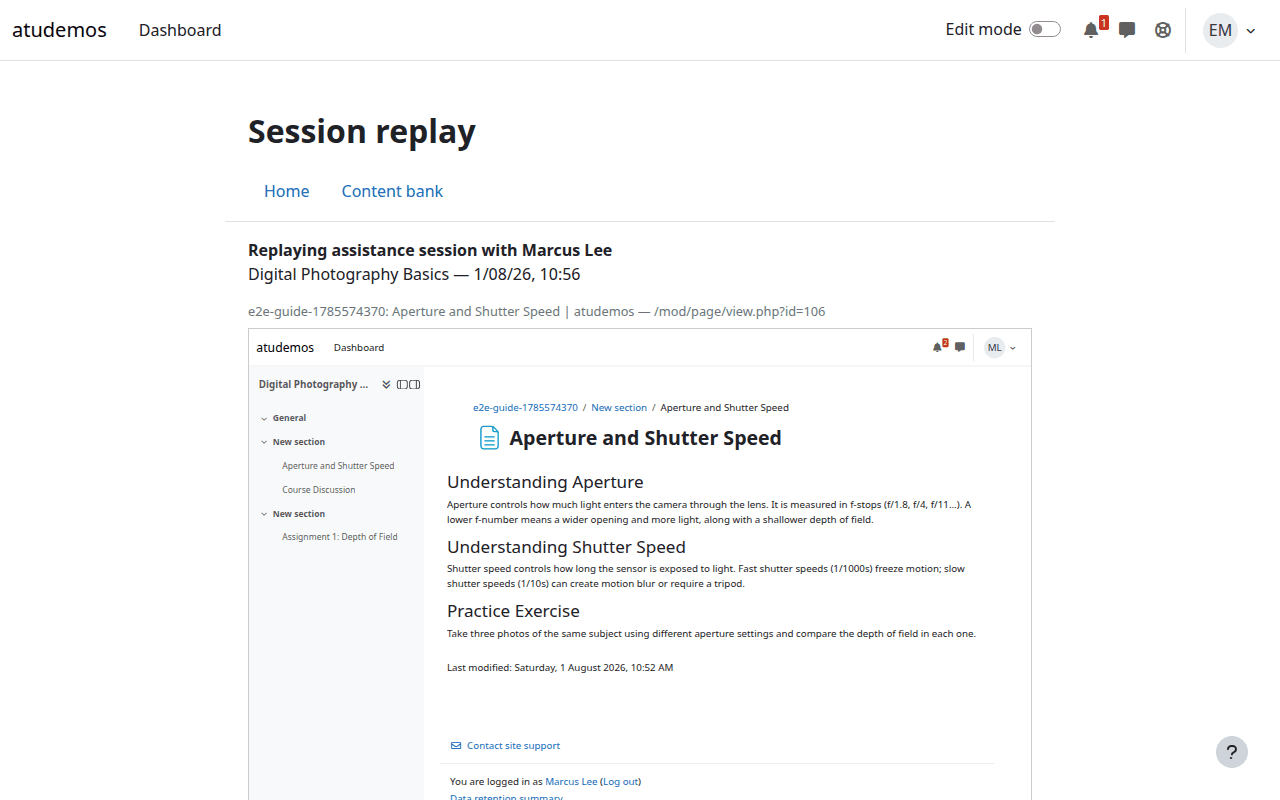
Teachers can review their previous sessions. If a recording exists under the retention policy, they can replay the screen activity and chat in sync at up to 8× speed.
8. Privacy and limitations you should know
- The student always sees that the session is active and who the teacher is.
- No video, other tabs, applications, passwords or form values are captured.
- Content inside an
iframe— common in SCORM, H5P or LTI — does not appear in the reconstruction. - The teacher’s view is inert and may look different with heavily customised themes.
- The student can end the session with one click.
Known limitations
Content from other domains or inside an iframe is not reconstructed. This commonly affects SCORM, H5P and LTI. Replay is structural rather than a video capture, so heavily customised themes may show visual differences.
These limitations protect isolation and should be assessed in a test environment before deploying the plugin.
Professional support
Iberforma can help with installation, permissions, privacy settings, validation with your Moodle™ theme, load testing and functional adaptation.