
Open source extension for Moodle™
Managed Availability: control course access from one dashboard
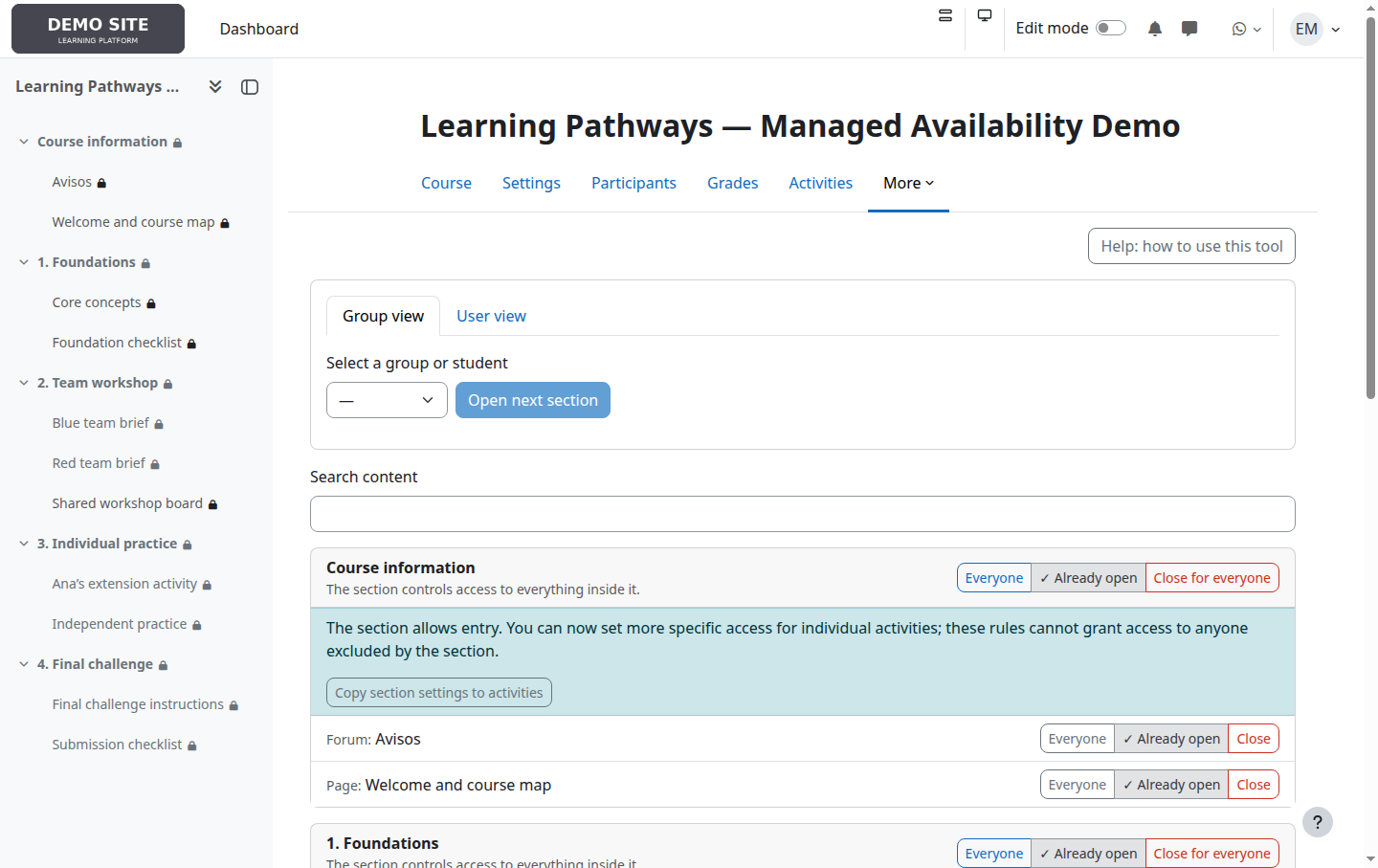
Open or close sections, activities and resources for the whole class, specific groups or individual students, without editing each item separately or bypassing Moodle™'s standard restrictions.
The problem
Releasing content by team or student normally means opening the settings for many sections and activities. In large courses, this becomes slow and difficult to review.
The solution
An operational dashboard shows the complete course hierarchy and lets teachers change who can access each item immediately.
The safeguard
Managed Availability adds one condition to Moodle™. Dates, grades, completion, groupings, visibility and all other restrictions still apply.
A clearer way to release course content
It is designed for group-based training, tutored pathways, competitive exam academies, individual support and any course where teachers need to release units in a controlled way.
- Open access for the whole class, one or more groups, or individual students.
- Quick actions to open or close content without leaving the dashboard.
- View the pathway available to a group or student.
- Manually open the next closed section.
- Explicitly copy a section's rule to its activities.
- Change history for authorised users.
How it works with Moodle™
Managed Availability targets combine with OR: whole class, group or student. The result combines with all other restrictions using AND.
Opening access for a student never bypasses a date, grade, completion requirement or any other existing condition.
Technical sheet
availability_managedInstallation
The repository contains a single installable plugin and requires no additional plugins.
- Copy the plugin directory to
availability/condition/managed; the directory name must bemanaged. - Run
php admin/cli/upgrade.php --non-interactiveandphp admin/cli/purge_caches.php. - Enable management from More → Managed availability configuration in the course.
Important: disabling a course deletes its managed rules. Global suspension retains rules and conditions so they can be resumed later.
Illustrated user guide
These screenshots come from the real plugin running in a fictional demonstration course. Open each section to follow the recommended workflow.
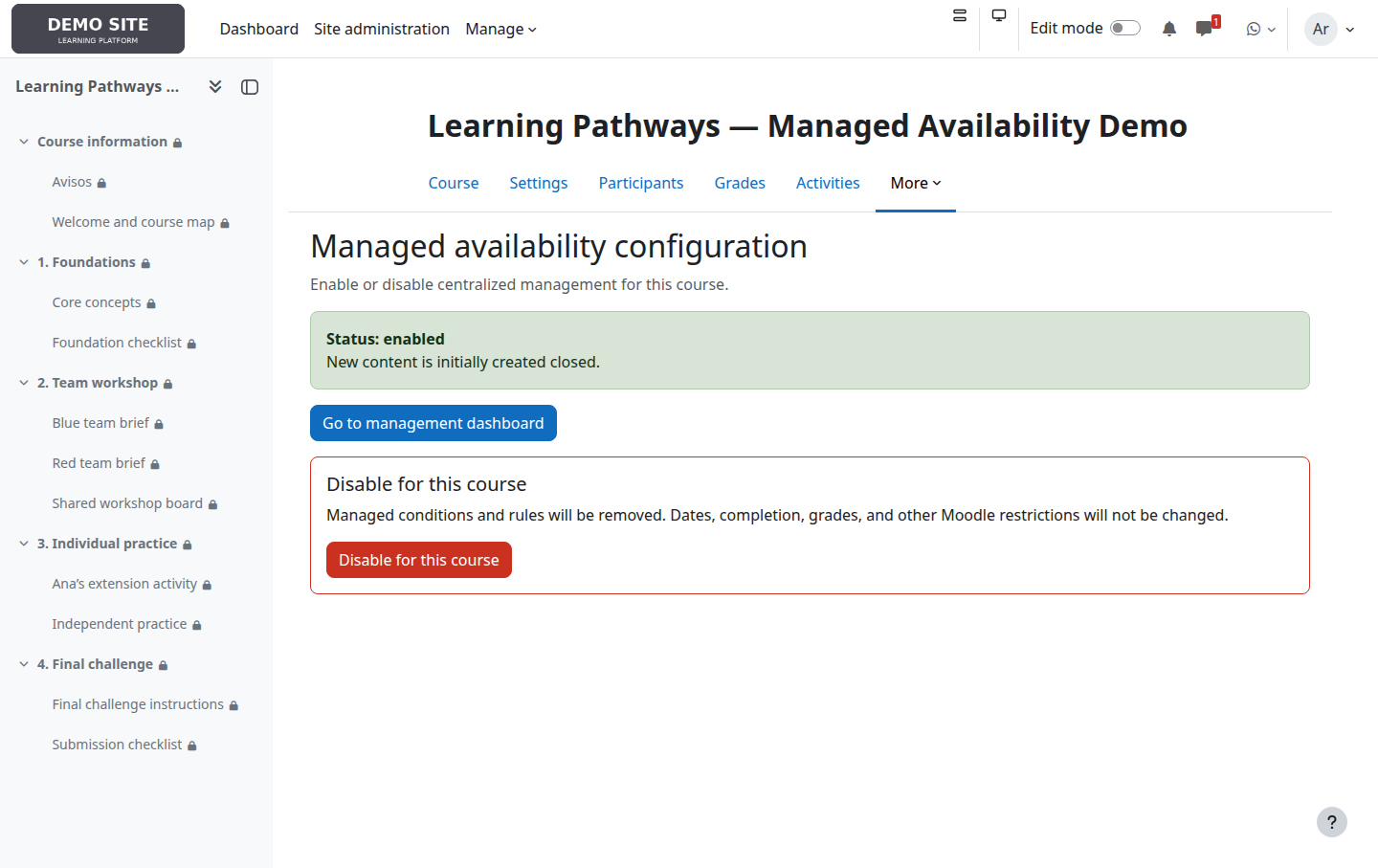
1. Enable management in a course
A user with availability/managed:configure opens More → Managed availability configuration. Existing courses should normally start open; starting closed is suitable when release is being prepared from scratch.
2. Understand the dashboard
Each card represents a course section. State buttons open the full editor; quick actions open to everyone or close to everyone. An already satisfied action is disabled.
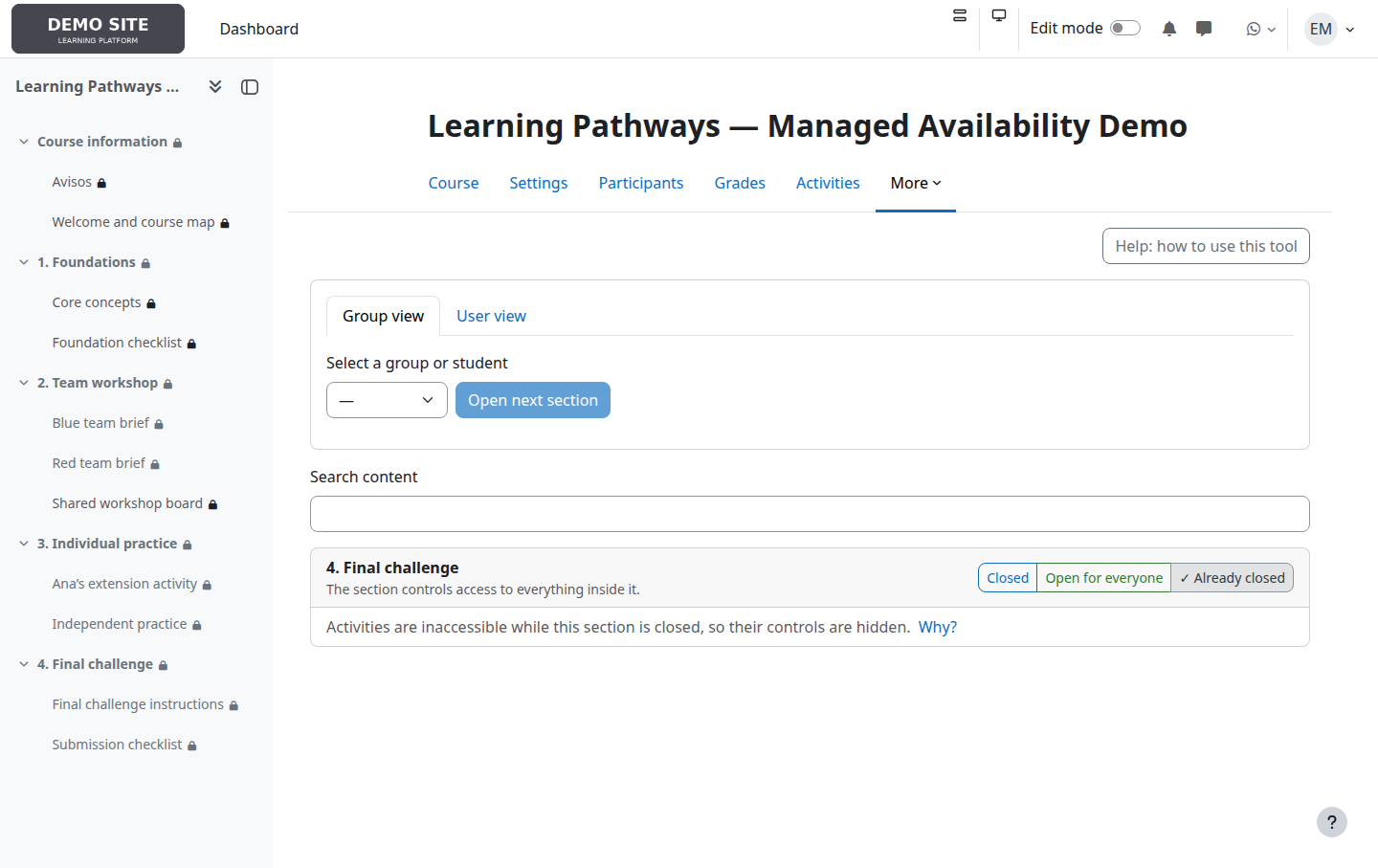
3. Closed sections and rules inside
A section with no target is closed and Moodle prevents access to its content. Activity rules are retained. Once the section opens, each activity can restrict further but can never admit someone excluded by the section.
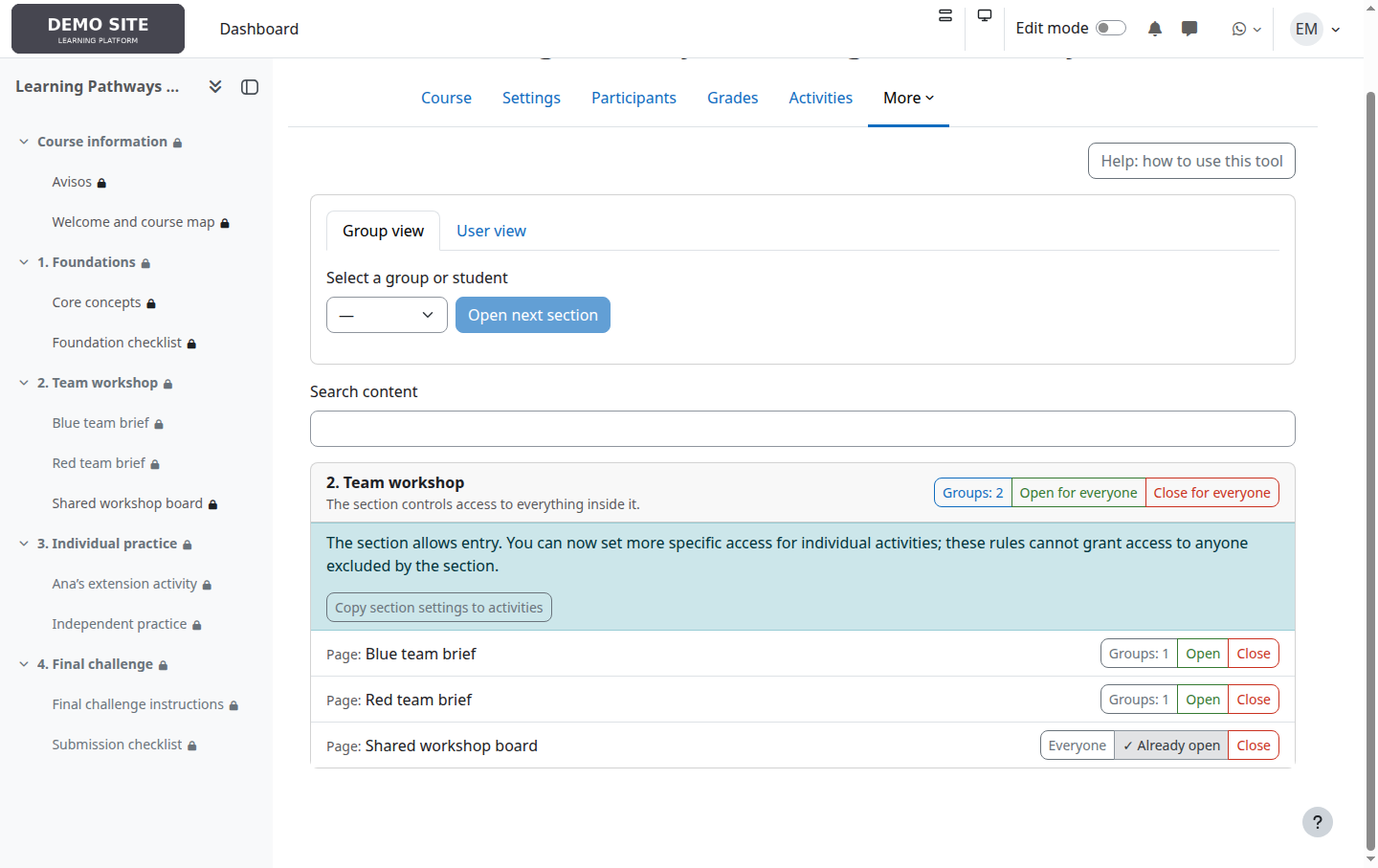
Effective access = section access AND activity access.
4. Select targets
Select the state button and choose the whole class, one or more groups, or individual students. Groups and students combine with OR, and Moodle checks current group membership on every access.
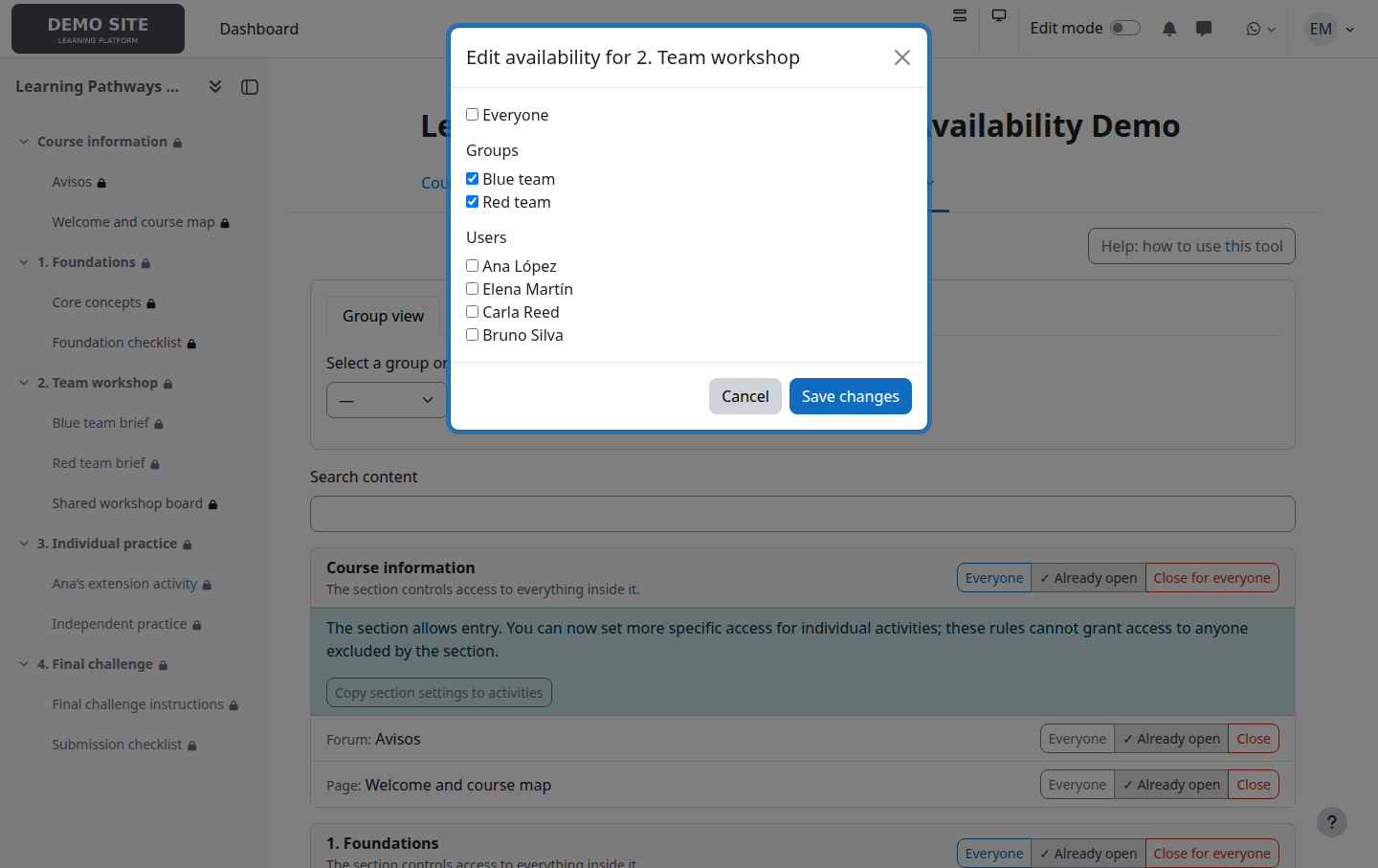
5. Copy a section to its activities
Copy section settings to activities is a confirmed, one-time replacement of every activity’s managed rule. It is not inheritance or synchronisation, and is not needed to block a closed section.
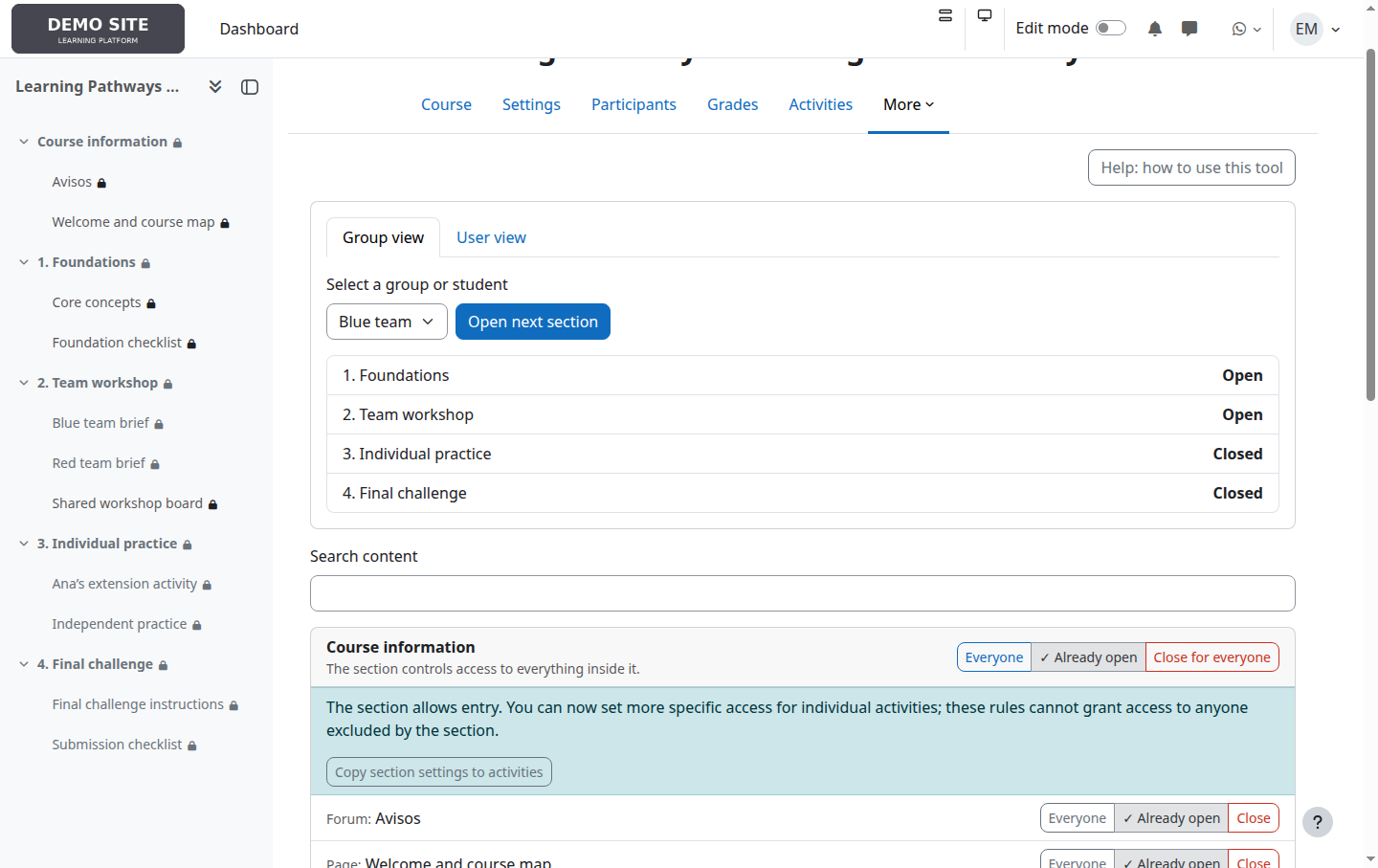
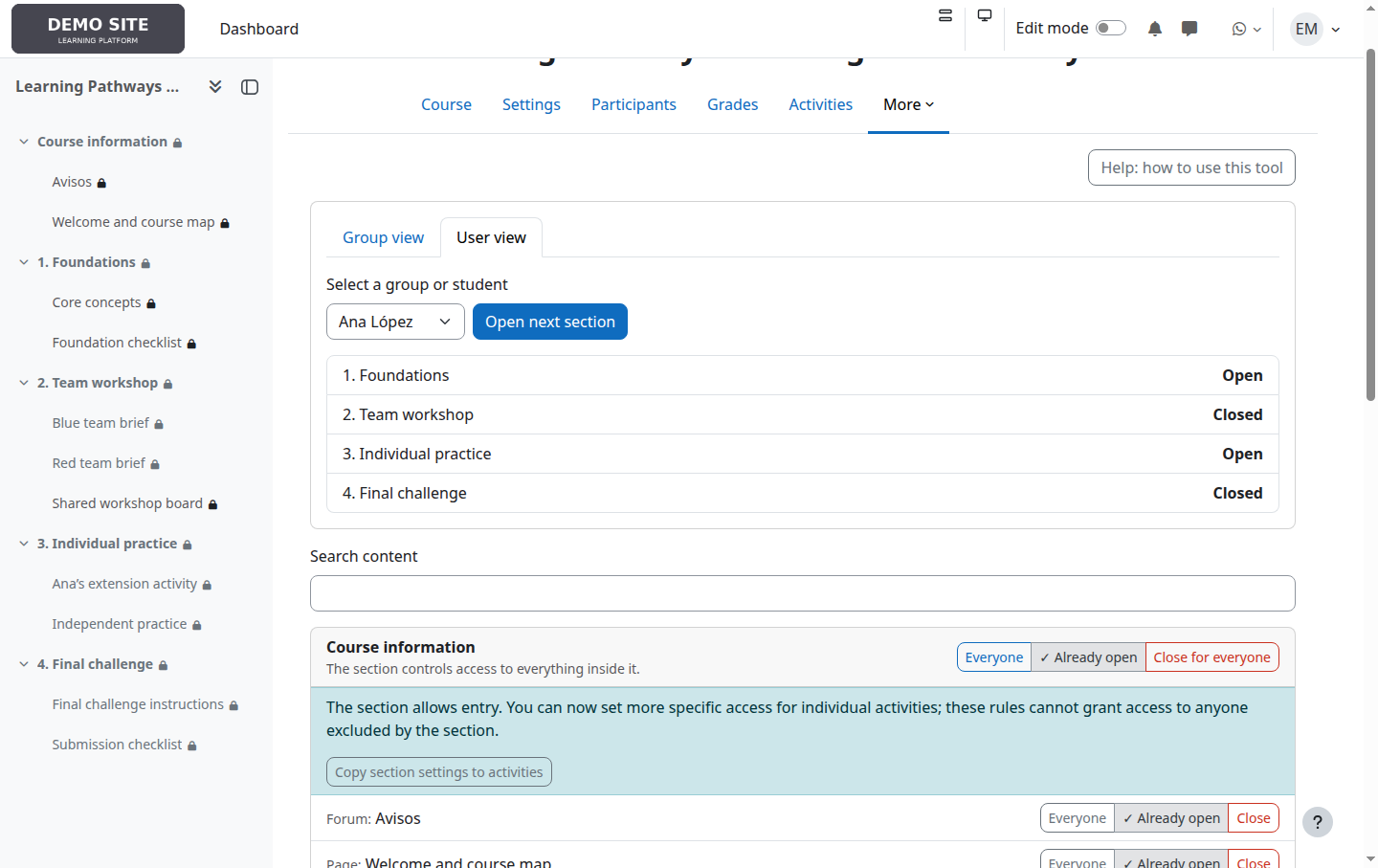
6. Review a group or student’s pathway
Group and student views summarise open sections for one target. Open next section manually releases the first closed section; it does not inspect grades or completion.
7. Check the student experience
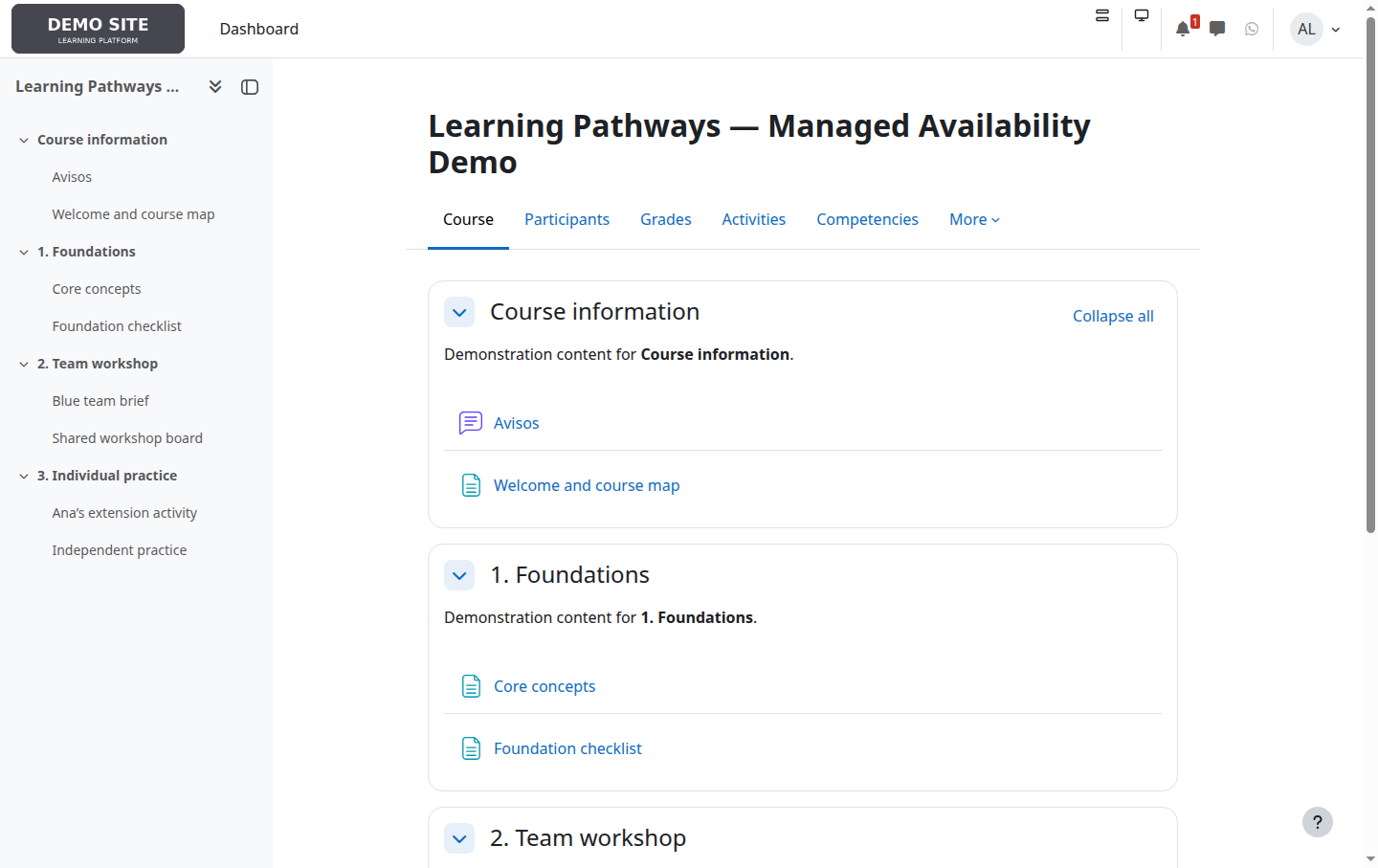
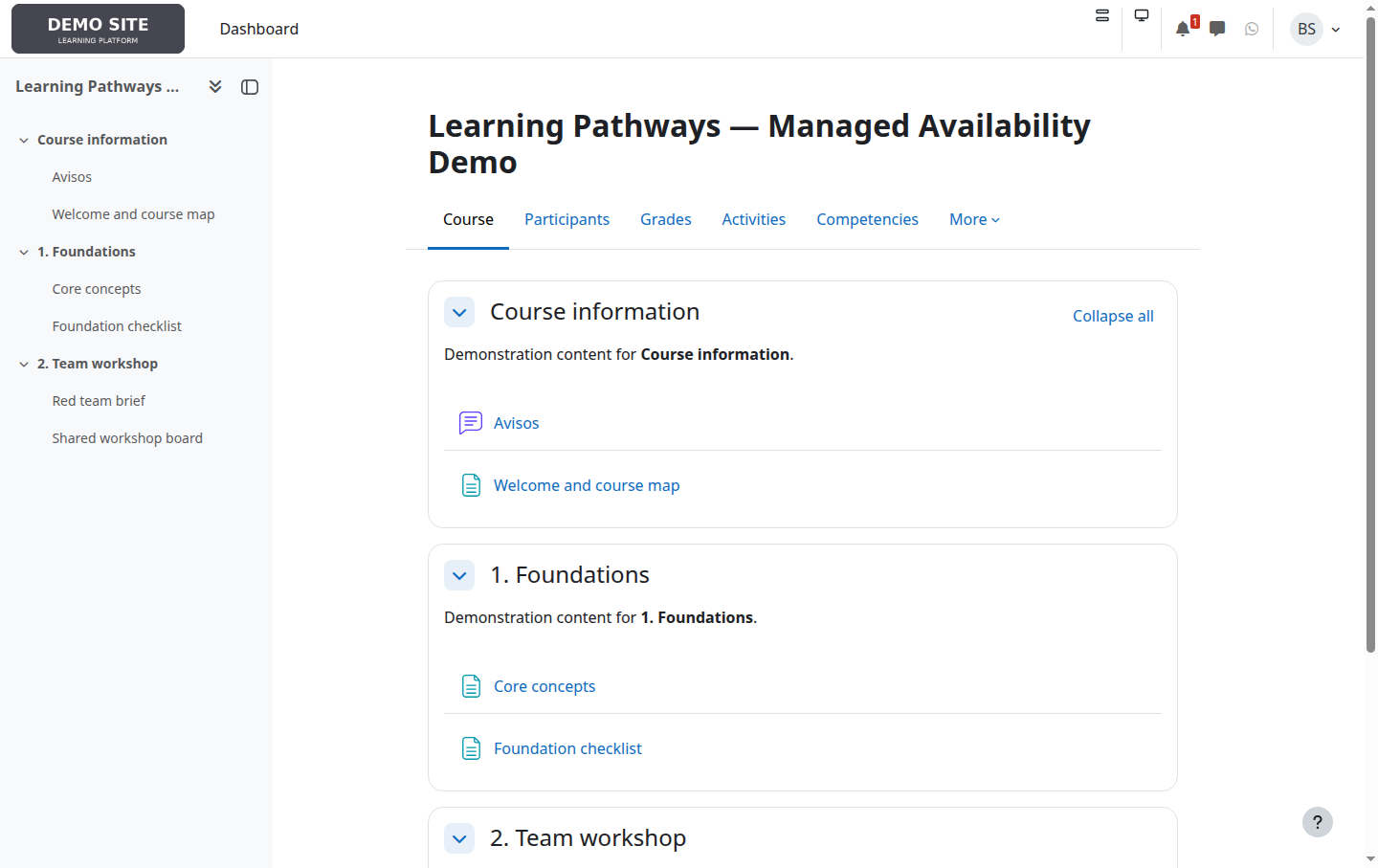
Ana belongs to Blue team and has an individual release; Bruno belongs to Red team. The same rules produce different navigation. Verify important cases with student accounts.
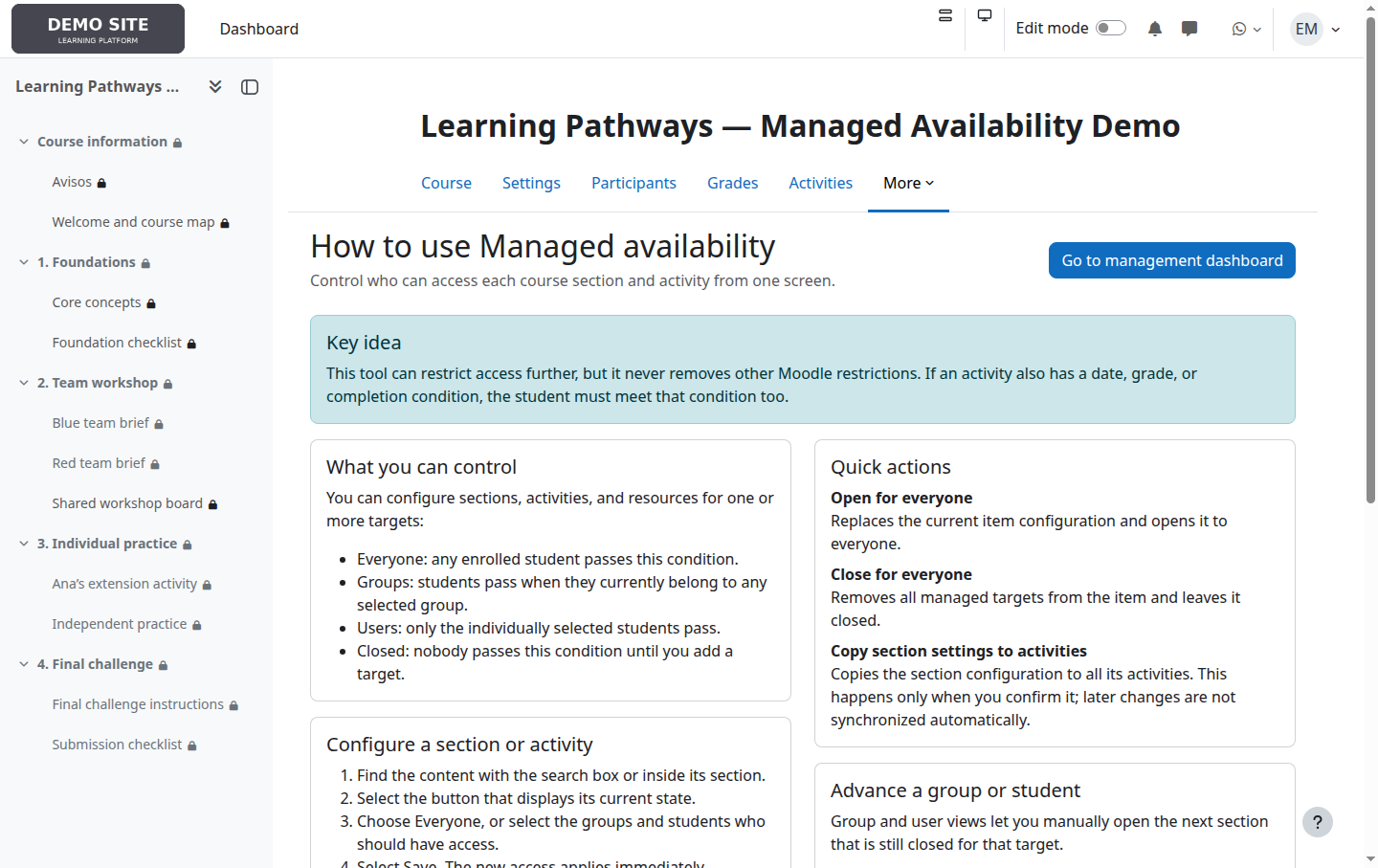
8. Use the integrated help
The course help explains targets, quick actions, copying, manual progression and precautions without leaving the course context.
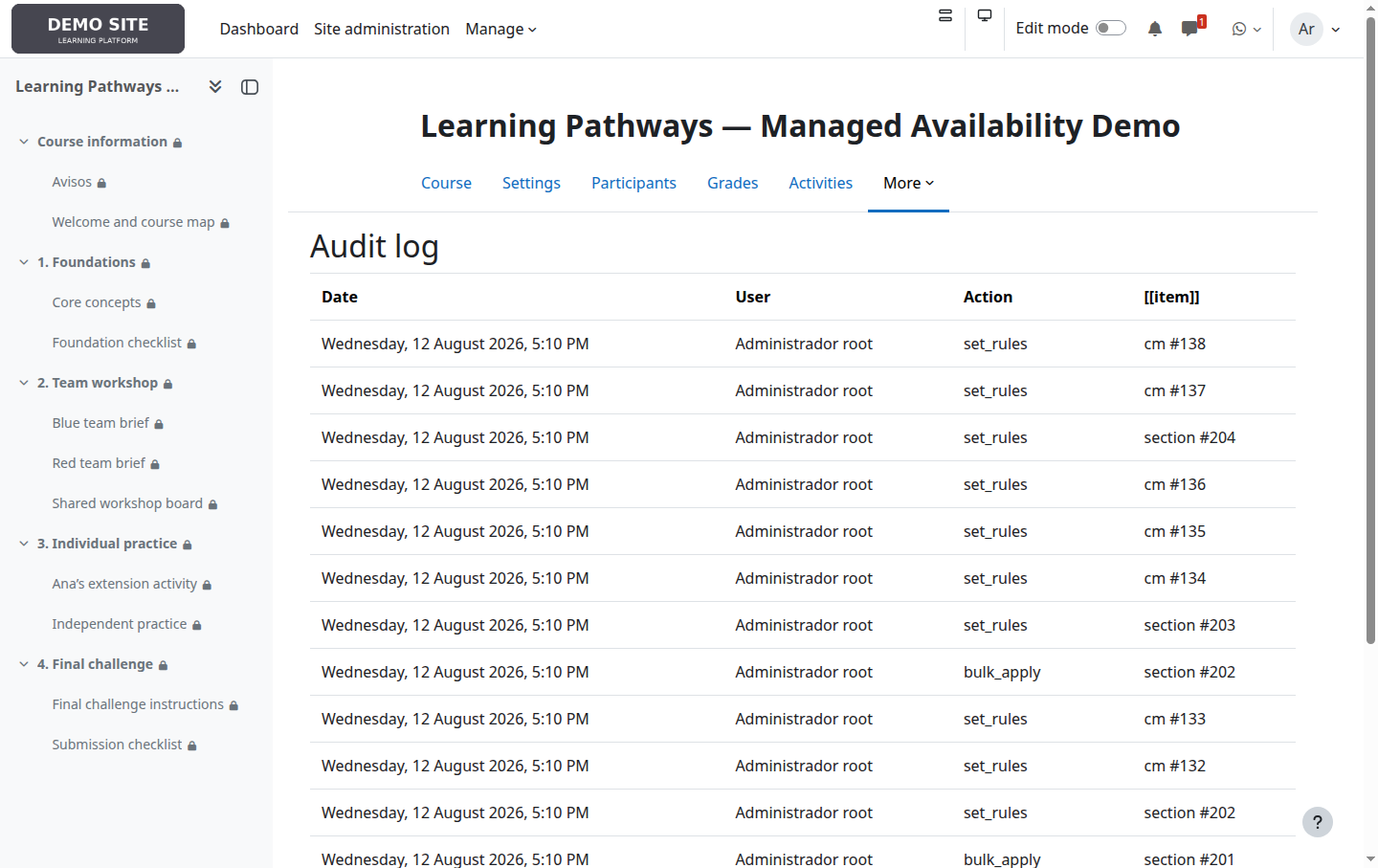
9. Review the audit log
Authorised users can inspect who changed an item, when, and its previous and new states.
10. Common situations
| Goal | Recommended configuration |
|---|---|
| Open a unit to everyone | Open the section to the whole class and restrict only exceptional activities. |
| Release by teams | Select groups on the section; configure activities only when they need different material. |
| Exceptional access | Add the student to the section and to every restricted activity they need. |
| Hide a whole unit | Close the section, not every activity separately. |
| Pause the whole site | Use global suspension, which retains the rules. |
Before finishing: check the section, then the activity, and finally all other Moodle restrictions.
Professional support
Iberforma can help with installation, validation in a test environment, functional adaptation, permissions, course integration and maintenance.