
Dynamic themes and logos for Moodle™
Theme Rules: a distinct visual experience for every audience
Automatically apply a theme and logo by user, cohort, course, category, group, tag, profile field or device. Everything is managed with visual rules and no code changes.
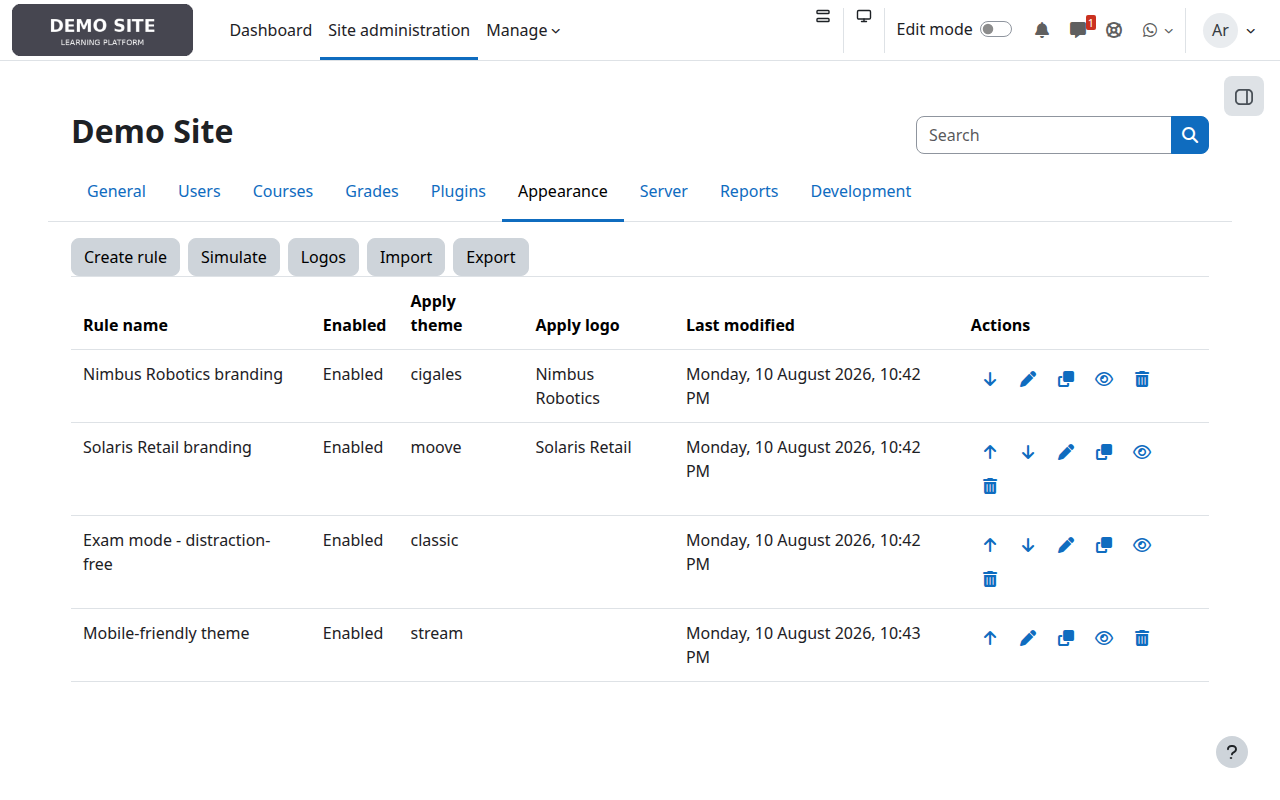
Branding by audience
Give each company, cohort or audience its own theme and logo on one platform.
Exam mode
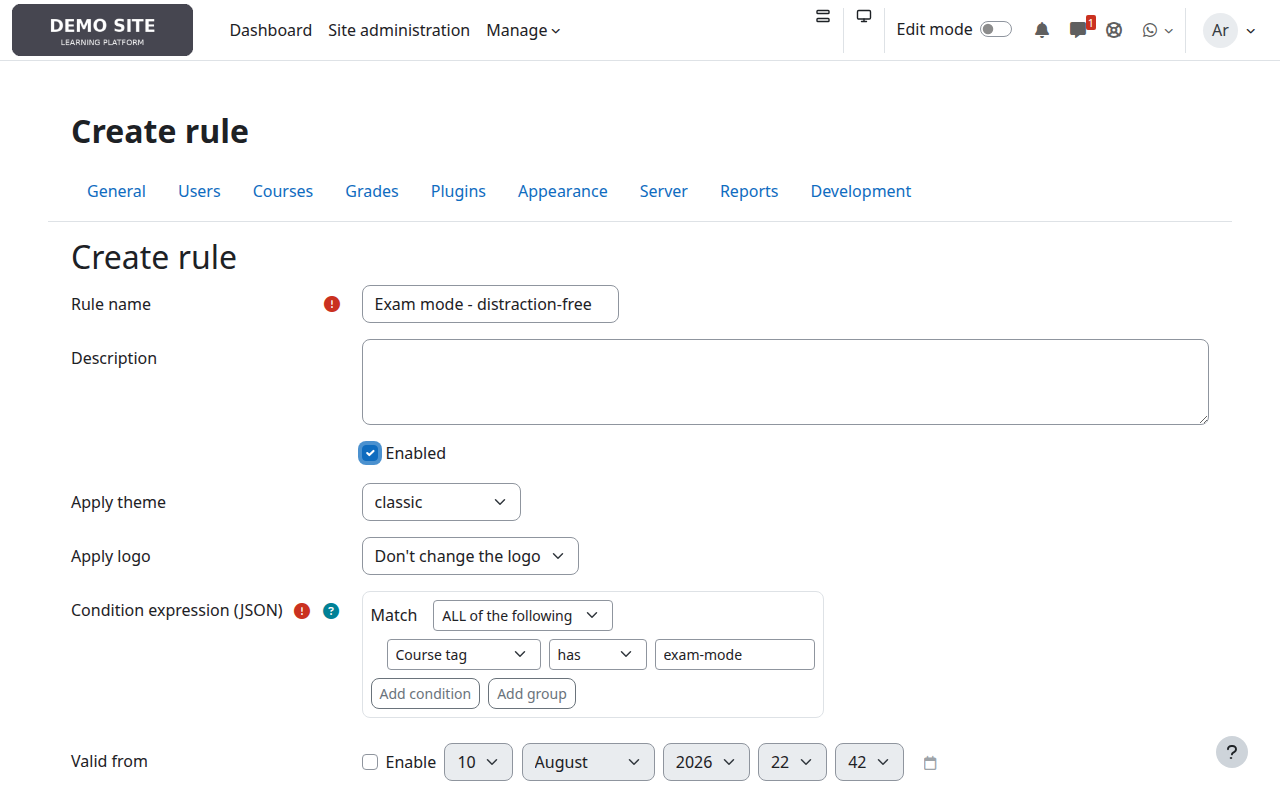
Enable a clean theme for every course carrying a tag such as exam-mode.
Design by device
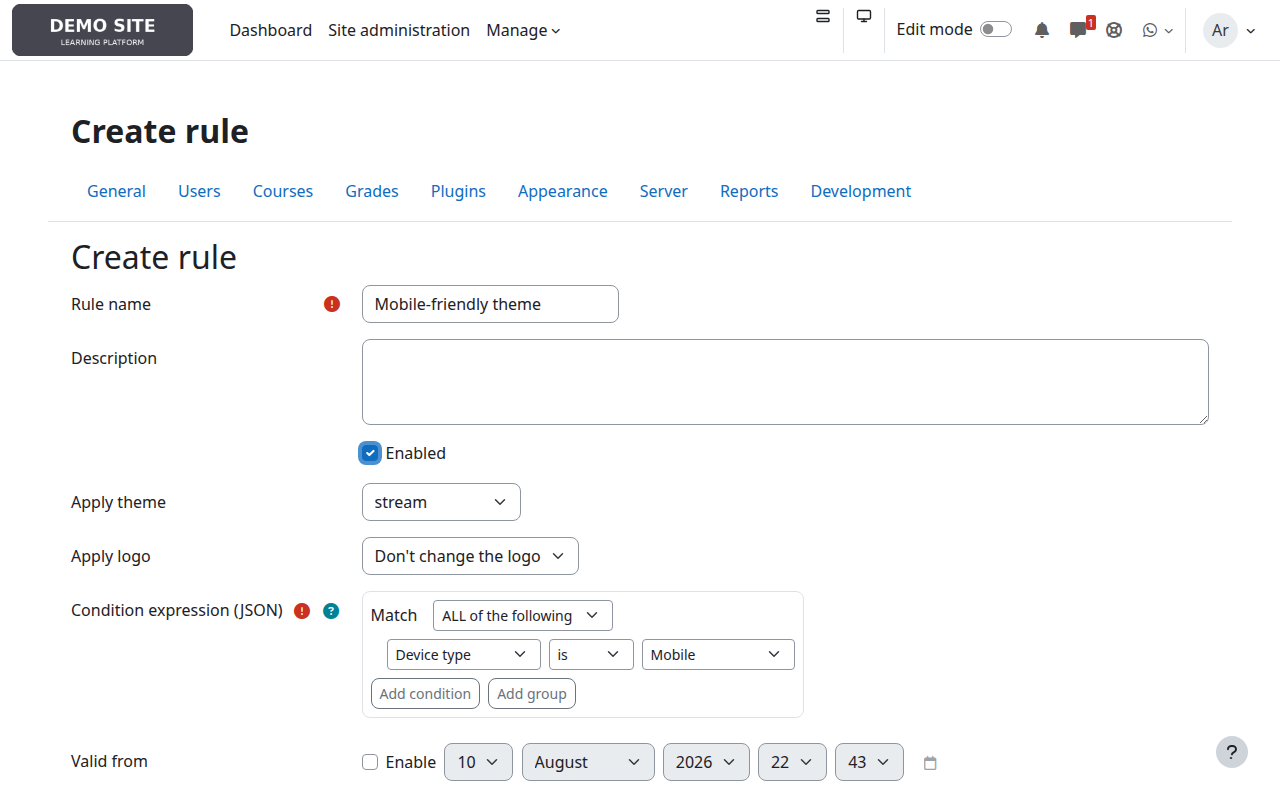
Use a lighter interface on mobile without changing the desktop experience.
Powerful rules without coding
The visual builder combines conditions through nested AND/OR groups. Each rule can change the theme, navigation logo or both; if none matches, Moodle™ keeps its normal behaviour.
- Conditions by user, course, category and descendants, cohort, group, tag, profile or device.
- Assisted user and course search, with selectors based on the site's real data.
- Top-to-bottom evaluation, with theme and logo resolved independently.
- Reusable logo library with no duplicate files.
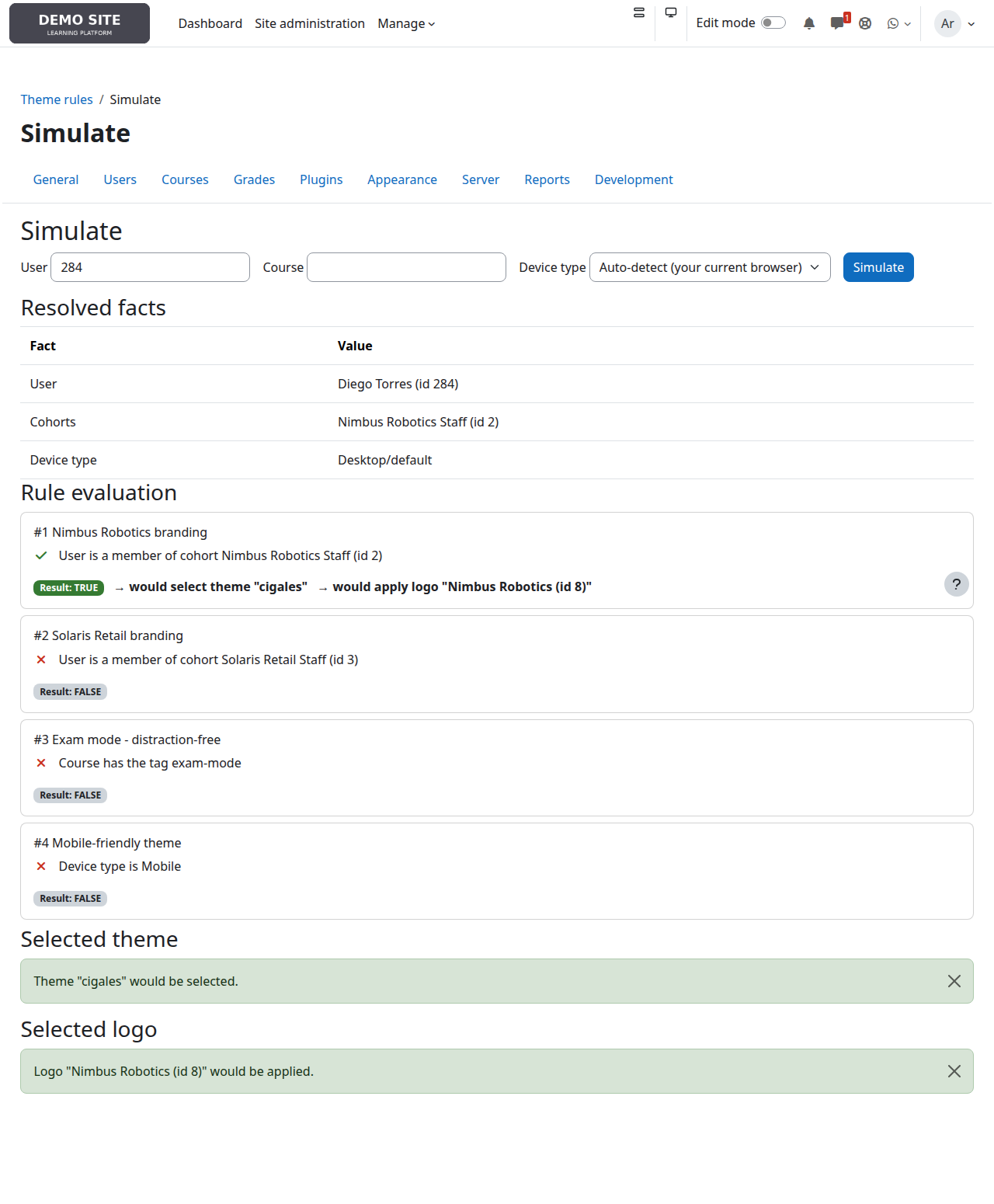
- A simulator explains which rules match and what result would apply.
- JSON export and import; imported rules remain disabled for review.
Safe control before affecting real users
Explainable simulation
Test a user, course and device and see matches, reasons and the result without altering any session.
Deliberate activation
An installation with no rules changes nothing. Imported rules arrive disabled.
Moodle™ privacy
It only reads data already held by Moodle and declares that it stores no personal data.
Technical sheet
local_themerulesInstallation and first steps
- Download the release and copy the folder as
local/themerules. - Open Site administration → Notifications or run
php admin/cli/upgrade.php. - Go to Appearance → Theme rules and upload logos to the library if needed.
- Create a rule, simulate it and enable it when the result is as expected.
Illustrated user guide
A real walkthrough of setup, three use cases and the validation tools.
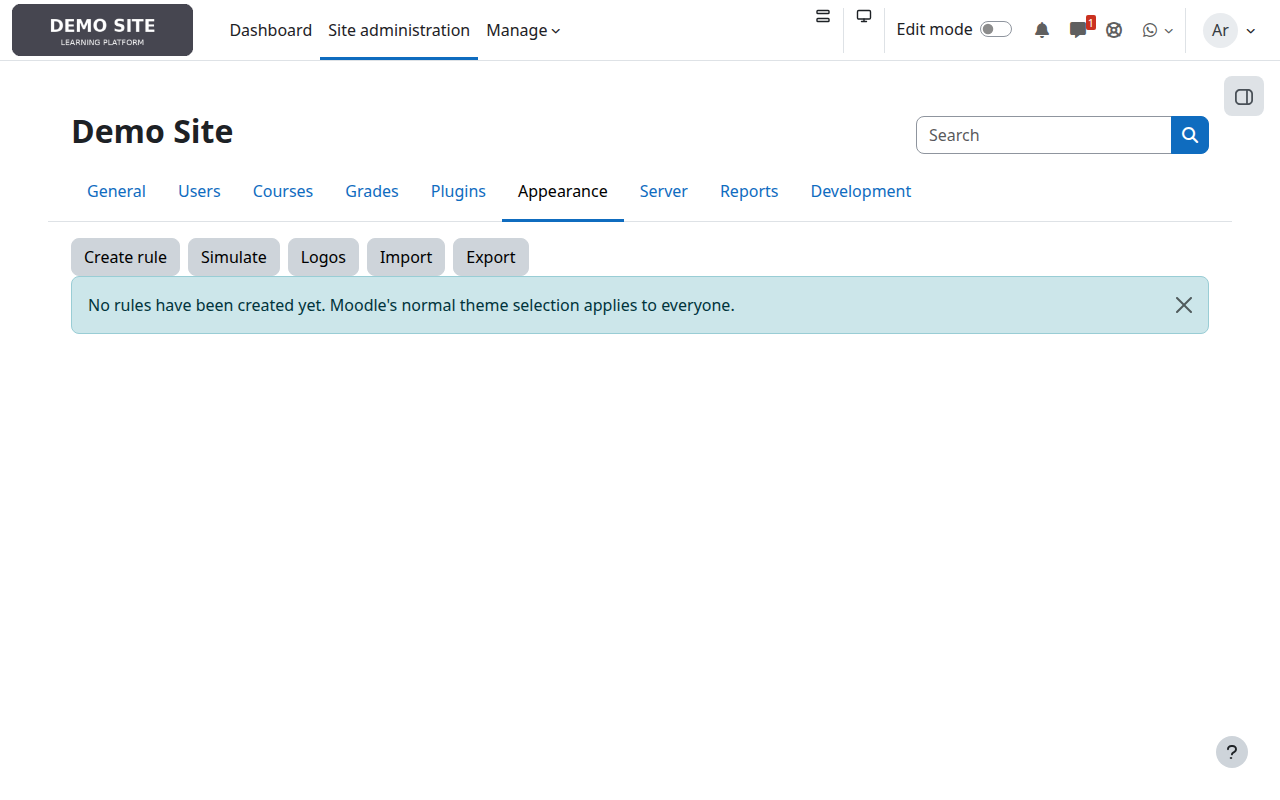
1. Start without changing Moodle
With an empty list, the site keeps its normal theme selection. This screen provides access to rules, logos, simulation, import and export.
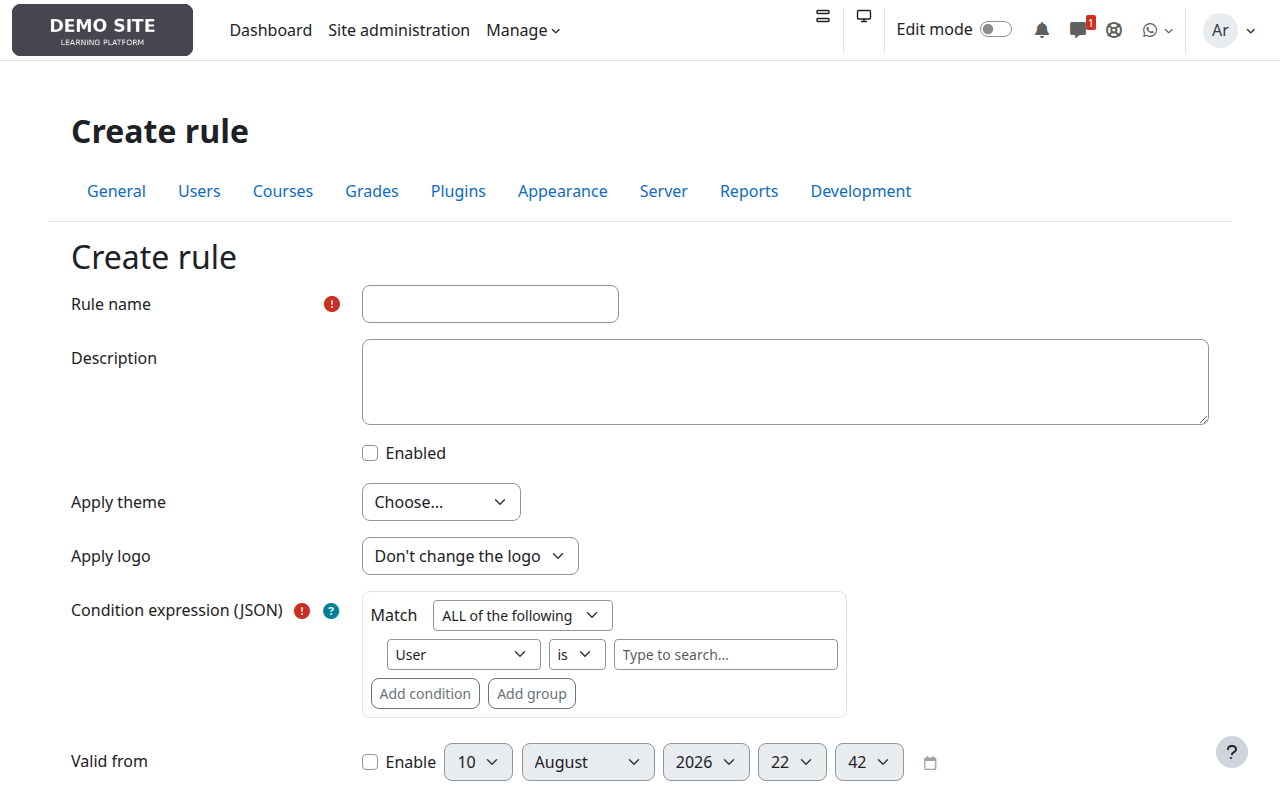
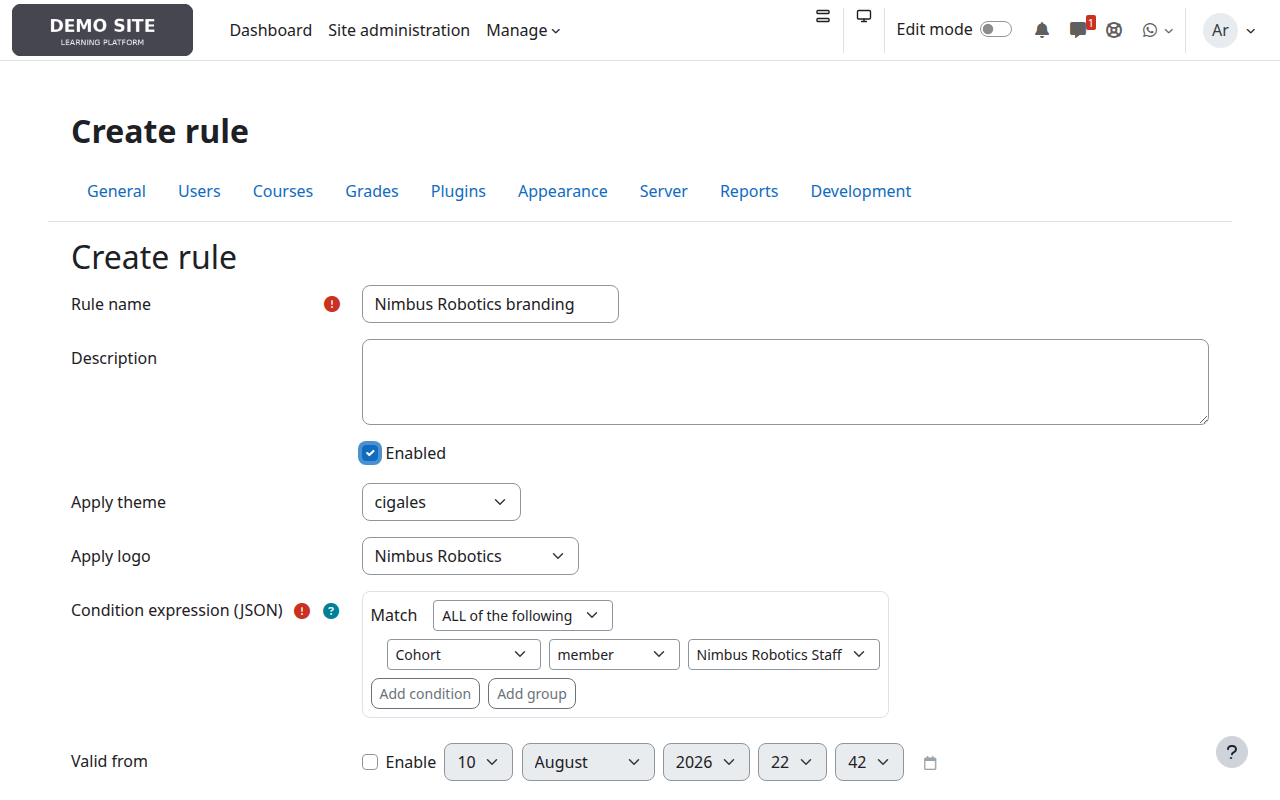
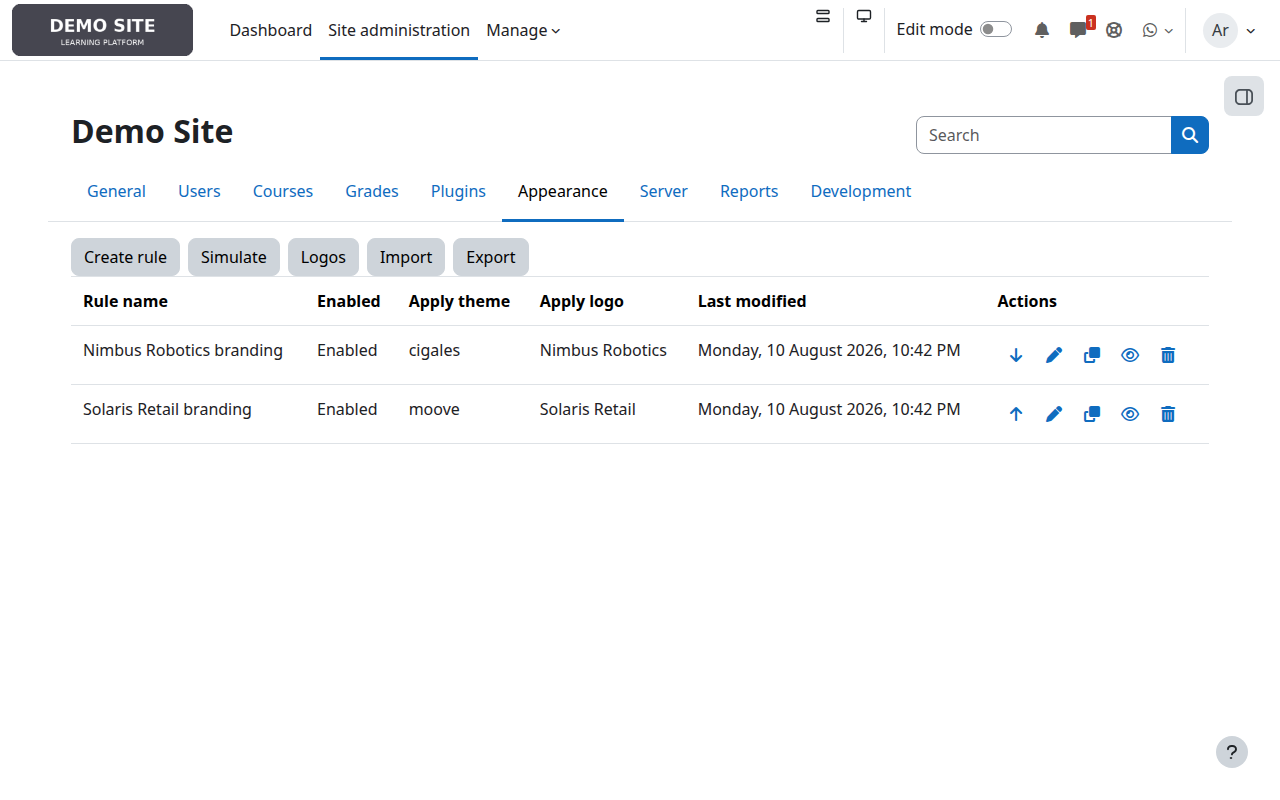
2. Create branding rules for several companies
The form combines one condition with a theme, a logo or both. Here, two cohorts receive different identities on the same platform.
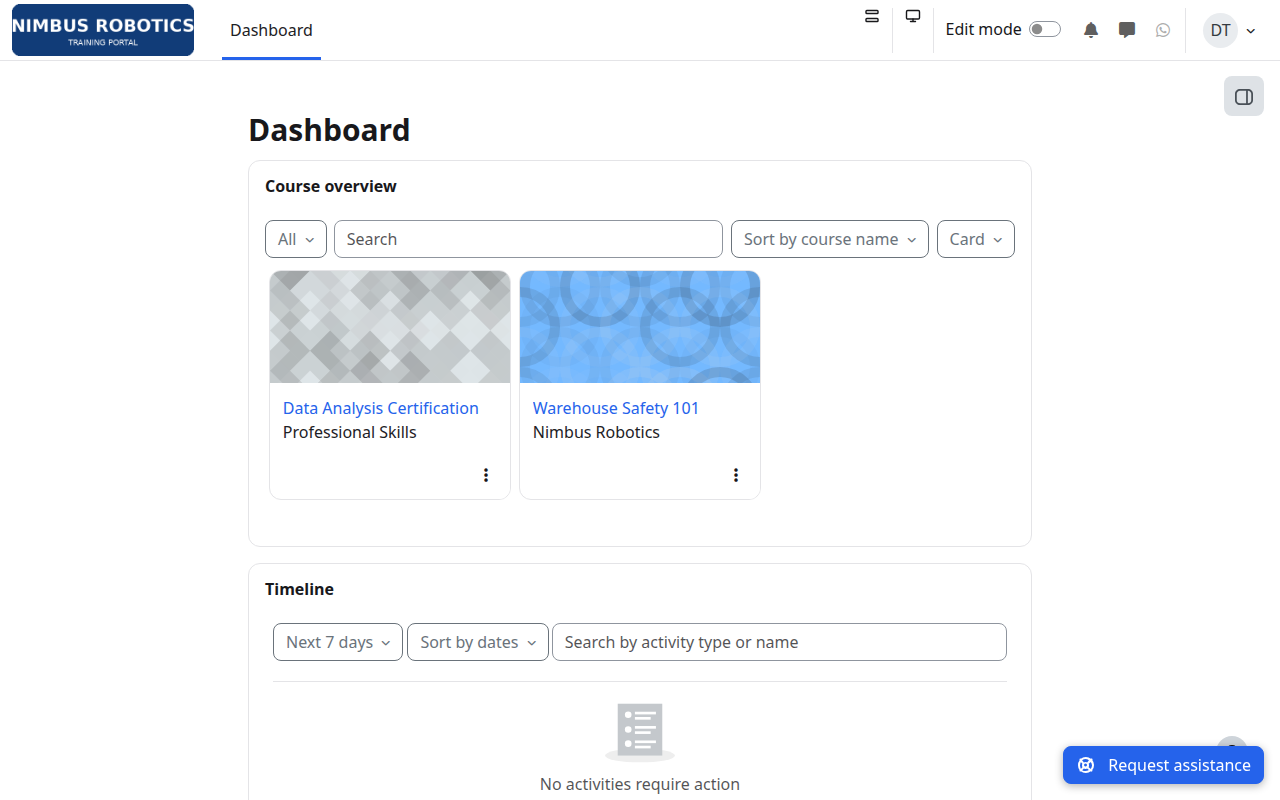
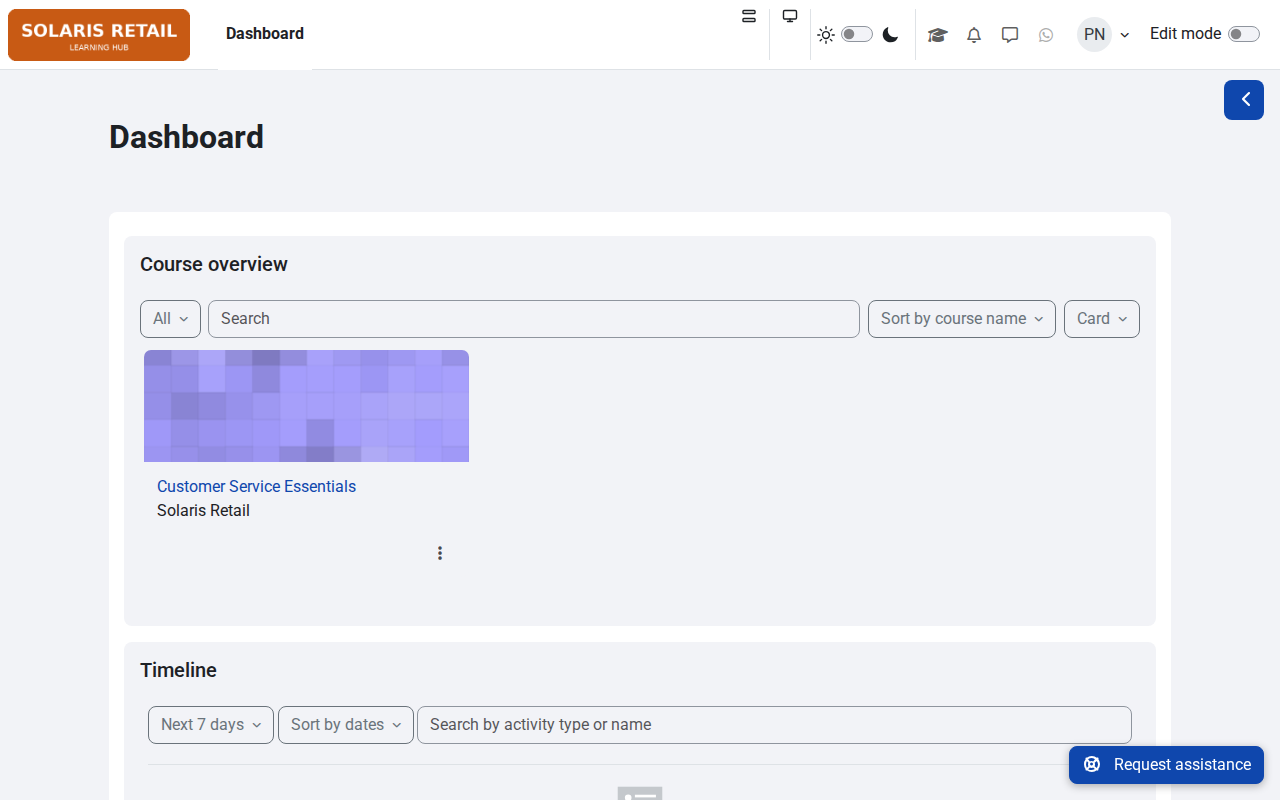
3. Check each audience's experience
The condition follows the person across the site. Two learners connected to the same installation see their own visual identity.
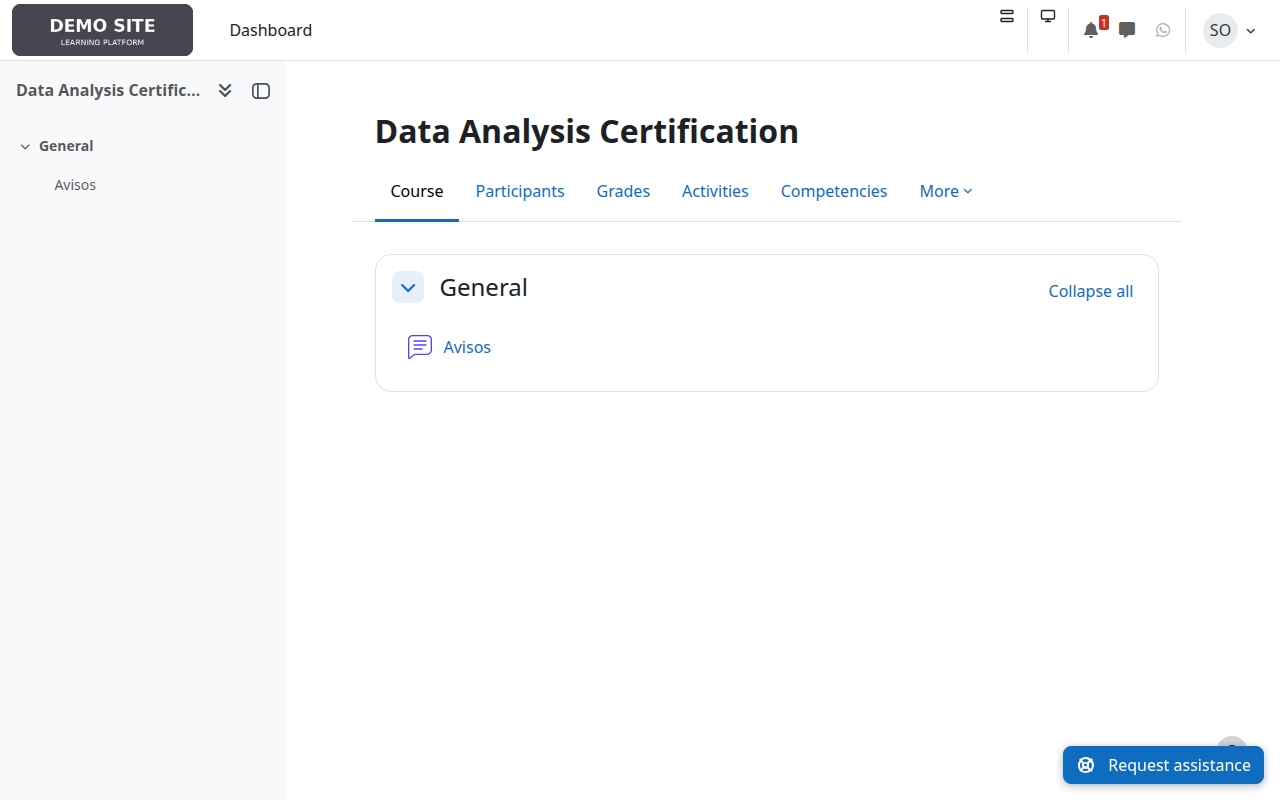
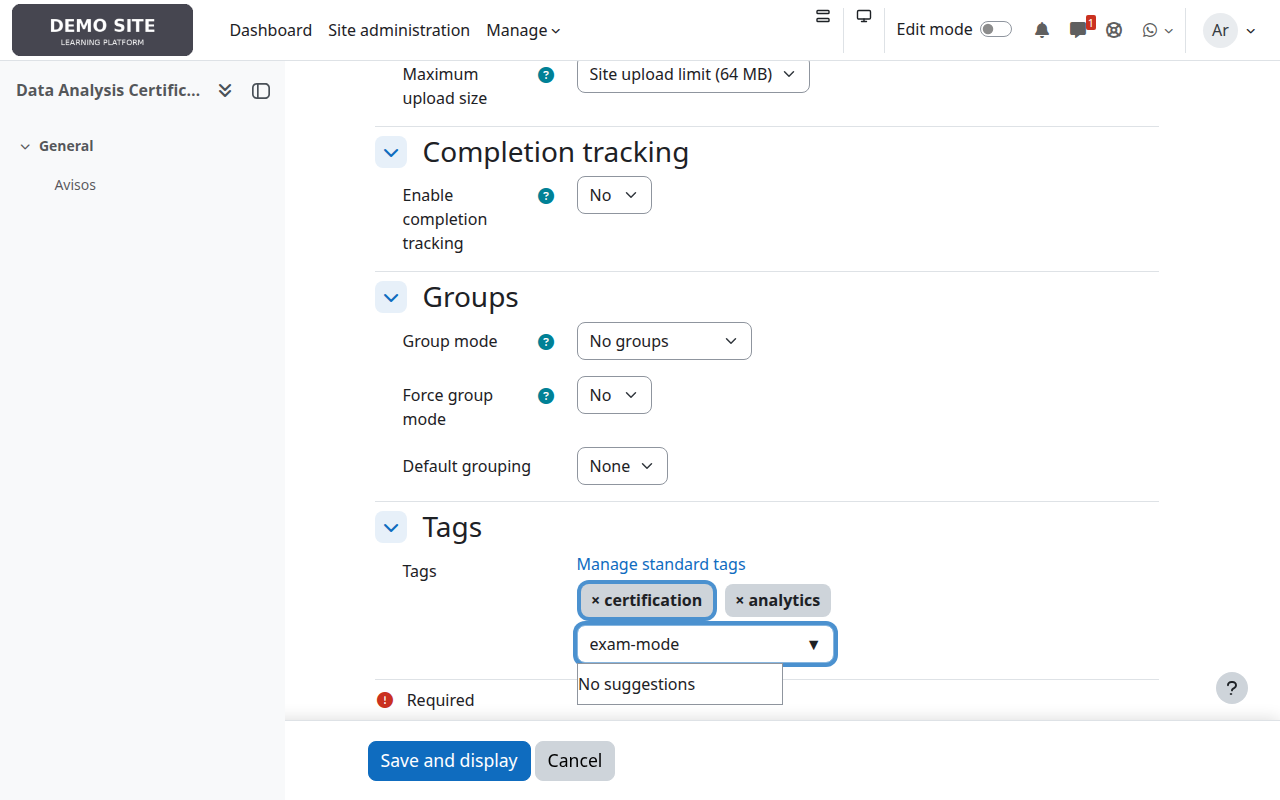
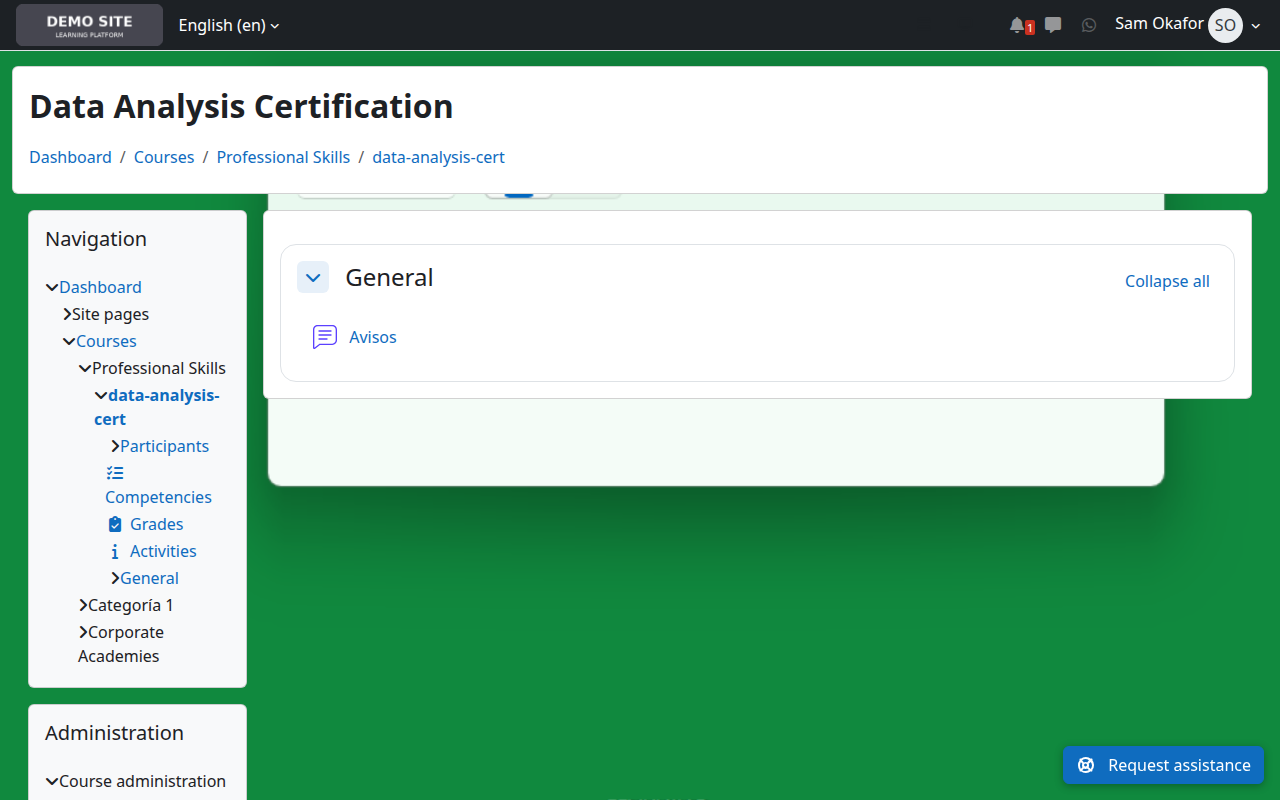
4. Enable exam mode with a course tag
A course tag can activate a distraction-free theme. Adding or removing it is enough to control future exam sessions.
5. Adapt the theme to mobile
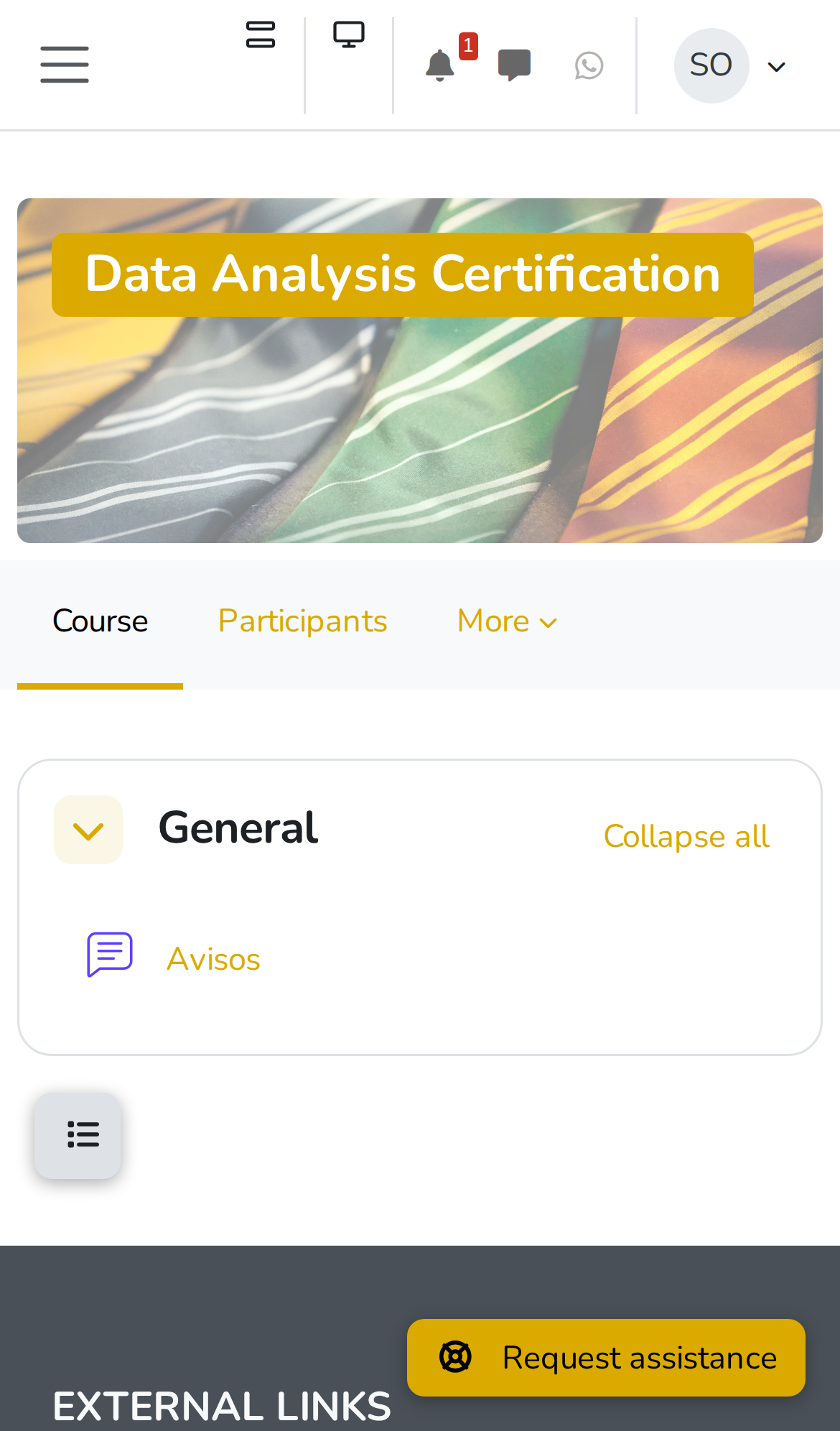
The device condition applies a lightweight theme only when Moodle detects a phone; desktop remains unchanged.
6. Simulate, order and move rules
The simulator explains every match before changes are enabled. The final list lets administrators order rules and export or import them between environments.
Professional support
Iberforma can help design the branding strategy, model rules, validate priorities and move configurations between Moodle™ environments.